15-08-14

VCAP-DTA Consolidated Study Guide 1.5 Released

Now that I have finally passed, I’ve been back over the Consolidated VCAP-DTA Study Guide and updated it. I’ve done some small formatting changes so it’s a little easier to read, as well as correcting a few typos I found and adding in the two quick reference tables for PCoIP and Windows image tuning that I blogged about previously. I’ve also added in a few exam tips for those thinking of sitting soon. As this road has now come to a bit of an end, I won’t be maintaining this guide from here on in until the VCAP6-DTA is released, which I expect to be a little way off just yet.

I’ll also update the sample questions guide, but that may follow in a week or so.

Enjoy!


14-08-14

VCAP-DTA Exam Experience (Redux)

So I got back about an hour ago from my second sitting of the VCAP-DTA exam in Leeds. As regular readers will know, I sat it a couple of weeks ago and failed. The score report I got back gave me some suggestions on the areas I wasn’t quite so hot on, so I spent some extra time going back over those and making sure I understood them (two factor authentication and group policy settings to name but two). I had the mindset that if I didn’t pass it today, it would be a would be a while before I’d be back as my employer wants me to get up to speed with the latest MCSE track and quickly, meaning I wouldn’t have the bandwidth (or the mental capacity!) to take on both at the same time.

Nor did it help that I was running a little late, I’d had a coffee and an early lunch because as usual, my appointment spanned over lunch time and I didn’t want to get hungry. By the time I set off for the test centre, it was getting close to my appointment time start so I had to run the last couple of hundred yards to make it on time. With that and a coffee swilling around inside me, my eyes were on stalks when the exam started!

I’m not sure how large the pool of questions is, but I did get a few I’d had previously, including some I came a little unstuck on. I tried to move on if I felt I was getting bogged down, with the intention of picking up as many points as possible elsewhere. Somewhat surprisingly, by the time I’d completed question 23, I still had 30 minutes left. So I went back, quickly checking my answers and referring to the admin guide on the ones I was stuck on.

It turned out to be a pretty effective strategy, although I did go back to delete and restart one “answer” I’d started and then ran out of time, as the desktop refresh was a little laggier than last time, and I couldn’t quite complete the task in time.

I came out feeling tense as I thought I’d passed last time and didn’t,  and I was mindful that I hadn’t completed all tasks with the loss of points that entails. Anyway, I got the score report back quickly again (thanks Joshua!) and this time thankfully I’ve passed! So now I have four VCAPs and I can afford to dream of the far off pot of gold that is the VCDX. I’m not going to think about that yet, as I’ve a box full of Microsoft exams to get done before I can get to that. Still, in the words of Peter Venkman, “we came, we saw, we kicked it’s ASS!”


G-1136 - We came, we saw, we kicked its ass


07-08-14

VCAP-DTA PCoIP Tuning Quick  Reference

Following on from my previous post regarding tuning your Windows 7 image for the purposes of the VCAP-DTA exam, I lifted the following table from the View 5.2 Best Practices guide. In the exam you don’t have a lot of time and you’re probably going to have to tackle a question at some stage about PCoIP performance or be asked to tune it for certain restrictive network conditions. The table below has a handful of settings which should help you go a decent way to getting good marks for this question:-

SETTING

DEFAULT RECOMMENDATION

DESCRIPTION

Build to lossless

On

Turn Off

Enables the ability to enable or disable build to lossless
Session Audio BWlimit

500Kbps

50 – 100Kbps

Reduces bandwidth usage of audio with usable quality
Maximum frame rate

30

Change to 10-15 based on network settings

In WAN conditions, this will be helpful for video playback and fast graphics operations
Maximum sessionbandwidth

n/a

Set per network conditions

Good for better bandwidth estimation
Client side cache size

250MB

Set per client-side memory available

This allows you to configure the client side image cache size

05-08-14

Windows 7 Desktop Tuning Quick Reference

Another item that kicked me a bit in the VCAP-DTA exam (as per the RADIUS post below) was tuning the Windows 7 desktop image for VDI. I mean, that could be a million settings, couldn’t it? Where do you start? You could take the whole of the three hours of the exam tweaking and changing! While going through a View best practices white paper for another piece of work that I’m doing, I came across a handy chart for a handful of basic items you should tune on your Windows 7 desktop, which is a damn sight easier than remembering hundreds of registry keys and group policy settings!


PARAMETER CONFIGURATION
vCPU 1 for WinXP and Win7 and Win8

2 for multimedia intensive apps

Memory 512-768 MB for WinXP

1GB for 32-bit Win7 and Win82GB for 64-bit Win7 and Win8

3GB for Win7 and Win8 64-bit for memory-intensive apps

Network adapter VMXnet3, flexible
Storage adapter PVSCSI or LSI Logic SAS
VMware Tools Latest installed
Visual settings “Adjust to best performance”

Disable Animations for Windows Maximize and Minimize operations

Use default cursor for busy and working cursor

Disable services Windows Update, Super-fetch, Windows Index
Group policy settings Disable Hibernation

Screensaver to None

Other settings Turn off clear-type

Disable fading effectsDisable auto-play and external drive caching for quick release

Disable last access timestamps (1)


1) Set the registry key HKEY_LOCAL_MACHINE/SYSTEM/CurrentControlSet/Control/Filesystem/
NtfsDisableLastAccessUpdate to 1

04-07-14

VCAP-DTA – Objective 5.3 – Compile and Deliver Full or Streaming Applications

So now the prep work has been done to get Active Directory ready for ThinApps, the next thing to do is to actually roll some! The recommendation is to have a clean vanilla install of the platform you want to virtualise on (so a clean Windows 7 machine for an app to be deployed to Windows 7). I’ve heard people say to virtualise on XP and then you can have an app on the lowest common denominator, but for the exam that’s a level of detail we’re not concerned with.

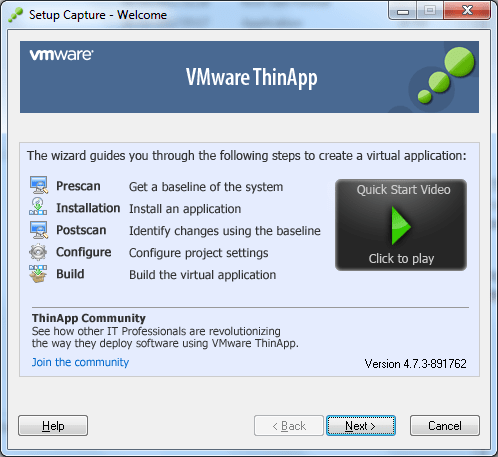
  • Build and modify a ThinApp project – The first task is to roll an application using the ThinApp packager by running the Setup Capture wizard either remotely or from a locally installed copy. This is a five step process which basically involves Prescan, Installation, Postscan, Configure and Build. It’s all wizard driven as per below :-
setup-capture

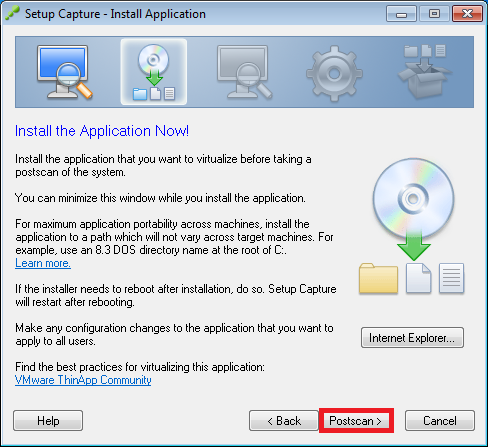
In the interests of time in the exam, I’m guessing you’ll be asked to package something reasonably cheesy and small, such as 7-Zip. Run the pre-scan task to get a “before” configuration snapshot. This doesn’t usually take longer than a couple of minutes. Once it’s done, you’ll be asked to run the installer, do this now. Always worth making sure you run the installer as an Administrator, that can sometimes cause odd things to happen to applications (and may well turn up in the exam). Once the install has completed, hit the postscan button to perform the “after” snapshot of the local filesystem and registry. You may get a warning to ensure the application has completely installed, so just double check this before you continue.

install


Once the post scan is complete, you’ll be asked to choose an entry point. This is basically the application executable. The wizard is usually pretty good at getting this right, but double check anyway. If you install a suite of products (say Office), you’ll need to add an entry point for each application such as Word, Excel, etc.

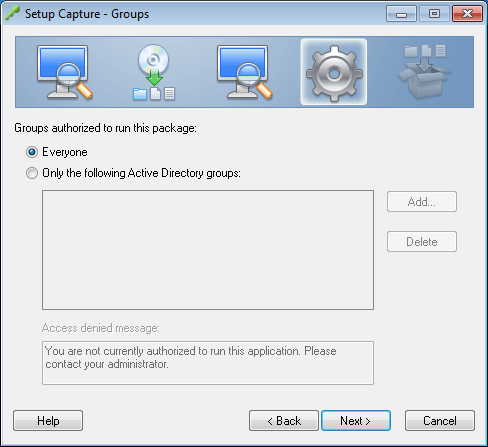
The next step chooses whether or not to manage the application via Horizon or if you’re updating an existing package. Choose as appropriate. The next step is to select which AD groups (if any) have access to the application. My guess is in the exam, you’ll be asked to restrict this app to a particular group and then test it.
groups

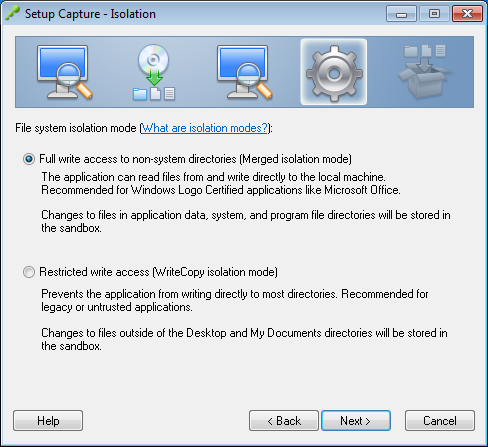
Next step is the application isolation mode. This is the kind of thing vendors love to test on exams. The default is merged isolation mode and allows the application access to read and write outside of the ThinApp sandbox. If I could dream up a test scenario for this, it would be that a virtualised app is playing up because it’s in WriteCopy isolation mode. This mode intercepts writes and stores them in the sandbox.  The use case for this is a highly locked down environment where you don’t want users writing to the local filesystem into system folders etc. The dialog is shown below:-

isolation-mode


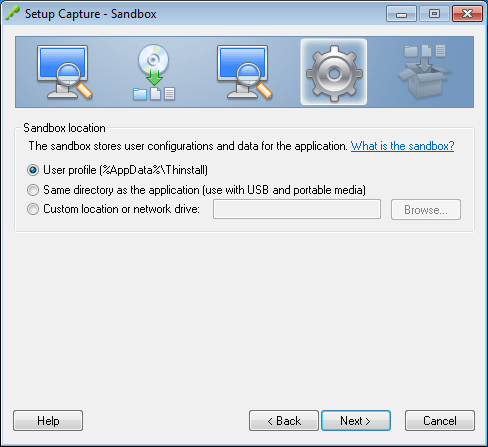
The next choice is the sandbox location. This is typically left as the default of the user’s profile. This basically allows the user to roam and still have access to the application sandbox. There may be cases where a USB stick is appropriate, and it may be there is a scenario on the exam where you need to alter this from USB to Profile to fix a fault.
sandbox

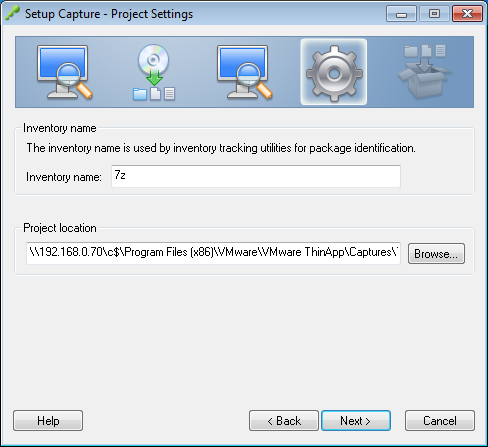
Click Next and you’ll be asked if you want to send feedback to VMware. I highly doubt your exam score will have any bearing on what you choose here, but just in case it’s specified in the scenario… Then give the application an inventory name (AKA folder name in the Captures directory) and a path to store project files. If you’re running the Setup Capture from a network share, chances are this will be pre-filled for you, as below:-

project

Select the primary data container (which is the application you wish to run) and whether or not you want to build the ThinApp as an MSI and whether or not to add compression, as per below. Click Save when you’re done:-

pdc

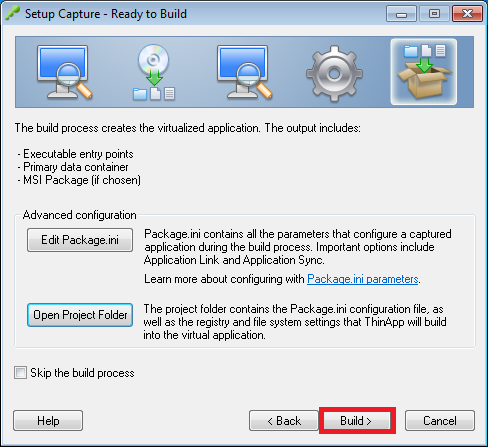
You’re now at the final step before the build process kicks off. You still have the opportunity at this stage to edit the package.ini file with any last minute adjustments you need before you start. There is still time at this stage too to go back in the wizard if you forgot to check the MSI build option in the previous screen. If all is well at this point, hit the Build button as shown below:-

build


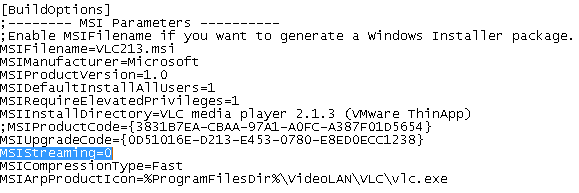
  • Configure MSI Streaming – This is a pretty easy task. Once you have a built ThinApp, open the package.ini file in the directory and open with Notepad or some other text editor. Find the section entitled [BuildOptions] (hint – it should be near the top!) and find the line that says MSIStreaming=0. Change this to MSIStreaming=1 and most important of all, don’t forget to rebuild the ThinApp with the new setting! To do this, run the build.bat file in the ThinApp package directory (i.e. the one with your ThinApped application files in). When the rebuild completes, copy the bin folder contents over to your ThinApp repo you previously defined.

msistreaming


You will also then need to add the application into the ThinApp dialog in View Administrator. Go to Inventory | ThinApps | Scan New ThinApps.. | Select the ThinApp repo | Select the folder to scan for new ThinApp(s) | Next | Select any detected applications you want to add | Click Scan | Click Finish.

  • Deploy ThinApp applications to desktop pools – Once you have one or more ThinApps created and then added to View Administrator, you need to configure usage. In the case of desktop pools, this is easy to do. From View Administrator, choose Inventory | ThinApps | Pick your ThinApp from the list | click on the Add Assignment spin button | select Assign Pools | select the required pool(s) in the dialog and click Add | if the ThinApp has been set for streaming, choose the Installation Type radio button for either Streaming or Full.
  • Configure ThinApp entitlement using View Administrator – To be honest, I don’t understand this objective. You can assign ThinApps by pool or by specific desktop, and that is the limit of what View Administrator can do. It may be that this objective is dealing with desktop specific assignment, if so, simply repeat the steps above but choose individual desktops instead of pools.


02-06-14

VMUG North West England meeting – 18th June


Logo


That time is upon us again and the next NW England VMUG meeting will be taking place as usual in the Crowne Plaza Hotel in Manchester on Wednesday 18th June. The agenda at time of writing is listed below :-

Morning Design Workshop – Darren Woollard, Xtravirt
Lunch
PernixData Presentation: Re-Think Storage Performance – James Smith
Community Presentation: Home Lab Storage and Lessons Learnt – James Kilby
Calyx MS Presentation: Hybrid Cloud and Calyx Silver Lining
Community Presentation: VMware Certification – Chris Beckett
vNews – Ashley Davies
Raffle and vBeers at Tiger Tiger Printworks

You may notice yours truly at the bottom of the agenda. It will be my VMUG debut as a presenter and my session will basically cover the VMware certification tracks, mainly focussing on the VCAP exam formats. My hope is that I can demystify it a little bit and offer some words of guidance on the best way to prepare for them as I’ve passed three of them now.

To register, please visit the VMUG group page. Looking forward to seeing you there!


16-04-13

VMware related offers of the week – be quick! Just another quick post to bring to your attention a couple of offers that might be of use to fellow virtualisation professionals. Firstly, the new book from Chris Wahl and Steve Pantol “Networking for VMware Administrators” is currently 50% off cover price at Pearson IT Certification. I haven’t read the book as yet, but you can read reviews from my friends Ather Beg and Seb Hakiel to see what it covers. Quite apart from anything else, it fills a notable gap in the market and should be a useful addition to anyone’s library. This offer expires this Sunday, 20th April. ShowCover The other deal is for VMUG Advantage membership. If you are already a “free” VMUG member, you can upgrade to VMUG Advantage status with a 20% discount when you use the code ADVSALE at the checkout. This offer expires a little sooner, at 12pm Central Time tomorrow. Don’t ask me what that is in “real money”, aka GMT 😉 nvvyrqmf As Maury Finkle would say – “Do it!”

03-04-14

vExpert 2014 Announcement


VMware-vExpert-2014-400x57


So Tuesday saw the announcement of the 2014 list of vExperts and I’m delighted to say that I made the cut this year (after checking of course it wasn’t an April Fool!). Actually, it’s the first time I’ve applied and looking down the list, it’s a “who’s who” of vRockstars from around the globe, including around a dozen or so of my ex-colleagues at Xtravirt  who continue to add a lot of value to the community.

A big thanks of course go to the team who make vExpert possible, getting through 700+ applications in a month can’t have been all that easy! Thanks too to Jason Gaudreau, our TAM at VMware, who suggested I should go for it in the first place. When I look back at the last year, I’ve done a lot – 3 VCAPs, a load of blog content, study guides, plus the work I’ve done with VMware PSO and the account management team since I’ve been at MMC.

You’d think that I might sit back now and rest on my laurels, but if anything, it’s actually making me want to do more. I’ve already offered to present at our local VMUG, I’m blogging as often as I can and there will be more VCAPs this year I’m sure, as I start on the vCloud path once I’ve got NetApp, VCAP-DTA and Hyper-V out of the way!

Looking forward now to getting started and continuing to spread the gospel of virtualisation. Congratulations to all 2014 vExperts both new and returning and thanks for making the community awesome!