19-01-14

VCAP-DTA Objective 1.2 – Deploy and configure View Composer

So in case you forgot, View Composer is the optional View component that allows us to provision linked clone desktops. It used to be that in older versions of View (5.0 backwards, as far as I remember), you had to install View Composer on the same Windows server as vCenter, the two could simply not live apart. However, in 5.1 and newer, this dependency was broken and you can now put View Composer on it’s own Windows server, away from vCenter Server. When I went on the View 5.1 ICM course, we ruminated that this was mainly for vCenter Server Appliance customers who also used View.

One of the limitations of this setup was that as the VCSA is a Linux box, you can’t really stack Composer on top of this in any meaningful way. So to workaround this and give customers a choice of vCenter platform, View Composer became effectively a “stand alone” component away from vCenter.

So in terms of skills being measured, this is what we need to know :-

  • Install, Configure and Upgrade View Composer. Hmm, OK. Right. So I would guess it’s likely we’ll have to both install and upgrade Composer, as there are a couple of vCenters and therefore most likely a couple of desktop pods. So what is required?
    •  Create a database for View Composer. If you’re a SQL shop, anything from 2005 upwards looks good. If you’re an Oracle shop, 10g R2 and above. To be honest, I’d expect the database to already exist. Again it comes down to what the exam blueprint is asking you to do, and you are not pointed towards database documentation, so it should already be there, albeit in an empty state.
    • Windows 2008 R2 and above server
    • 4 vCPU, 8GB and 60GB disk space. Again I wouldn’t expect to be asked to provision this VM, I’d expect it to be there, ready for some Composer goodness. This is only a 3 hour exam, remember!
    • Remember that Composer can’t co-exist on the same server as any other View component, such as Connection, Transfer or Security Server. Even a VM with the View client or agent is out too.
    • You should quickly check the SQL DSN if you have time, in Data Sources in Control Panel. I’d expect this task to be completed for you, anyway.
    • You can add your own certificate at this point, but for this guide, I’ll just concentrate on using self signed for now.
    • Run the installer as an administrator and run through the steps to install the service. Remember that the user account specified as the Composer user must be a local Administrator on the server it’s on.
    • If you want to specify a custom certificate during the installation, see the section below on certificates.
    • Once Composer itself is installed and the service started, you go into View Administrator and enter in the details under View Configuration | Servers | vCenter Servers | Add. Enable View Composer, verify the correct port is specified (defaults usually work pretty well) and add the domains you wish to put linked clones into.
    • If you’re asked to upgrade, run the Composer 5.2 installer as an administrator and follow the prompts, it’s pretty straightforward. Choose to upgrade the Composer database when prompted.
  • Implement and Upgrade Certificates for View Composer. The good news is that certificates in View 5.2 are a lot less fiddly than they used to be in version 4.x. Instead of having to mess about with command line tools and bits of OpenSSL, you just get the trusted root certificate and server certificate (and intermediate certificate, if appropriate) and import them into the certificate store of the local computer (not the current user, if you have to go through the steps). This is done via MMC, adding in the Certificates snap-in.
    • Remember to change the friendly name of the certificate in MMC to vdm.
    • Import and verify the SSL certificate you want to use in MMC before you run the tool to setup Composer SSL certificates.
    • Stop the Composer service.
    • Run sviconfig -operation=ReplaceCertificate – delete=false, select the certificate you want to use from the Windows certificate store.
    • Restart the Composer service.
    • Verify Composer is running successfully.
  • Configure View Composer for one-way and two-way trust scenarios. My interpretation of this objective is actually quite simple (and I’m no AD expert!). If you have a two way trust then one single service account is enough in Composer to be able  to provision linked clone desktops in a domain that has a two way trust with the domain that the Composer server is a member of. On the other hand, if there is just a one way trust, you may need to configure another service account in the domain where you want to create desktops, if that’s different from the domain that Composer lives in.
    • Adding details of Service Accounts is done from View Administrator, View Configuration, Servers, vCenter Servers, Edit and in the View Composer pane at the bottom of the dialog, click Add and fill out the service account details. This dialog can be quite pernickety, so ensure you put in the full FQDN of the domain in the top box and then username and password. If you get an error even though you know the details are correct, check this account has Administrator rights to the Composer server. Jason Langer’s website has a good example of this.
  • Migrate View Composer to a standalone installation. This is quite an involved process so I would imagine you can bank on this being tested on during the exam. There are several options around how migration can be performed, but what it mainly boils down to is whether or not you want to use the existing Composer database when you move the service to another Windows Server. If you already have linked clone pools then this is pretty much a given. You can either leave the Composer database where it is and point to it from the new Composer server, or you can move the database at the same time you move the Composer server. Either way, the key thing to remember here is that the Composer service uses RSA keys to encrypt and and decrypt information from the Composer database. When you move Composer from one Windows Server to another, you have to ensure the keys get carried across, otherwise you basically lose the ability to access your existing linked clone pools.
    • Remember Composer instances must have their own databases, they cannot share the same database but can be on the same database server.
    • If your current Composer instance does not have any linked clone pools defined, you can migrate Composer without worrying about maintaining database links, as there is basically nothing in there you need.
    • You may well be tested on both migrating Composer with an existing “populated” database and also without, so it’s worth knowing how to accomplish both goals.
    • Migrate with an existing Composer database – In View Administrator, click View Configuration, Servers and click “Disable Provisioning”. If you need to relocate the database elsewhere, this is when you would do it. I would expect this to be out of scope for the exam as it’s a DBA task. You then need to uninstall Composer from its current location and then export the RSA keys out, to send over to your new Composer Server. .NET and ASP.NET IIS needs to be installed on both source and target, but I think we can assume this will be done for you in advance.
      • On the Composer source server, open a command prompt and go to %windir%\Microsoft.NET\Framework\v2.0xxx folder (where xxx  is the installed version number)
      • Run the key export by running aspnet_iisreg -px “SviKeyContainer” “keys.xml” -pri. This will export the public and private keys to a file called keys.xml.
      • Copy keys.xml to the target Composer server
      • Open a command prompt and go to the .NET directory as per the first step
      • Run the command aspnet_iisreg -pi “SviKeyContainer” “<path>\keys.xml” -exp. This command imports the RSA keys into the local key container. The -exp switch marks the keys as exportable, in case you need to export then again in future
      • Install Composer on the target server, selecting the appropriate SQL DSN during the installation
      • Configure SSL certificates for Composer as needed, as per above
      • In View Administrator, click View Configuration Servers, select the vCenter Server instance that is associated with this View Composer service, and click Edit
      • In the View Composer tab, provide the new View Composer settings. If you are installing View Composer with vCenter Server on the new computer, select View Composer co-installed with the vCenter Server. If you are installing View Composer on a standalone computer, select Standalone View Composer Server and provide the FQDN of the View Composer computer and the user name and password of the View Composer user.
      • In the Domains pane, click Verify Server Information and add or edit the View Composer domains as needed. Click OK.

10-01-14

VCAP-DTA Objective 1.1 – Deploy Highly Available View Installations

So the first objective in the exam blueprint is “Deploy highly available View installations”. That can come in many forms. Looking at the main bullet points and the reference sources cited by VMware Education, let’s drill down into it.

  • Configure highly available connectivity to the View environment. So what we can we read into this objective? The reference source is the View Architecture Planning guide and the View Installation guide. My inference here is that we’re not going to be expected to manipulate any kind of load balancing or content acceleration product, and there’s no reason why we should as it’s not a core part of Horizon View.
    • Firstly we can ensure we reduce the single points of failure. We may be asked to add more Connection Servers if there are only individual instances. Remember to select Replica Server when being asked what type of Connection Server we wish to add. Only the first instance of a Connection Server in a replicated/ADAM group is the Standard View Connection server. Remember this, or you’re going to have problem adding servers to an existing group.
    • What else? Well there are the main features of vSphere such as DRS and HA which we can leverage to ensure that View Connection Servers not only come back up in the event of host failure, but also ensure the Connection Server has enough grunt to perform when lots of connections will be coming in. I don’t think it outlandish that we may be asked to configure a memory reservation for Connection Servers, after all, they’re Java based services remember and VMware’s best practice is to set a memory reservation on VMs hosting JVMs.
  • Configure stateful and stateless load balancing for a View implementation. What did we just say earlier, we shouldn’t be asked to configure a load balancing solution because it’s not part of Horizon View? I’m really not sure why this objective is listed in the blueprint. I’ve had a good look through the reference sources and there is nothing specifically listed there regarding stateful/stateless load balancing. I looked around for a good reference on this topic, and found a useful article at F5 which actually mentions View as well. However, some good things to remember :-
    • Stateless means the connection is not tied to an individual Connection Server or Pod on connection/reconnection. This can be referred to as persistence or some load balancers call this “stickiness”. No history of the previous connection is retained on the load balancer.
    • Stateful load balancers “distribute traffic based on L3,L4 or L7 criteria to increase traffic capacity and reliability by improving application performance”.
    • One caveat to the above is that I’m absolutely not a networking or F5 expert, so take the above with a grain of salt. If anyone can provide a better explanation, I’d be happy to amend this bit. To be honest, I’m not really sure what this has to do with core Horizon View apart from the behaviour on disconnect (logoff, retain session etc.)
  •  Implement vSphere cluster isolation and High Availability rules.  Now we’re back in the land where we know what we’re doing (or at least I do!). So as I mentioned earlier, one area you can look at in the area of highly available View infastructure components is to use vSphere High Availability to ensure a high level of resilience and availability for your Connection, Security and/or Transfer Servers.

    • Cluster isolation  – what you you want to do if a host becomes isolated? The safe option is the default option of leave VMs powered on, but the exam may ask you to adopt a more aggressive stance. Bit dangerous that one, you may end up restarting a Connection Server chock full of users that can communicate on the network quite happily.
    • VM Restart Policy – This setting will give you ability to override the cluster level setting which is usually “medium” for all VMs. In this particular case, it’s likely you’ll have to set rules to ensure Connection/Security/Transfer servers restart first before other VMs such as desktops, remember the dependencies here. In which case, don’t overlook vCenter Server and also SQL Server, if you have that virtualised. You’ll need to group those into the first VM restarts too.
  • Configure a View implementation with multiple vCenter Servers. As discussed in the previous blog posting, VMware will likely use this exam to reinforce the Pod and Block reference design, so to scale your View implementation into the thousands, you need to create blocks of 2,000 desktops with their own vCenter and manage them as one. This way you don’t kill a single vCenter with lots of power management requests (power off/on/, reboot etc) as well as pool provisioning tasks.
    • View Administrator is the web based administration tool used to connect vCenter servers into View.
    • Go to View Configuration | Servers | vCenter Servers | Add and fill out the relevant details for the vCenter Server you wish to add. Note also this is where you configure View Composer settings. You may not be asked to configure this first up, but worth remembering this is where to go when dealing with the Composer based questions.

09-01-14

VCAP-DTA Exam Blueprint Released

So the VCAP-DTA exam has finally made it out of beta and is now available to sit at your local (!) Prometric test centre. Now I’ve got the two VCAP-DCx exams passed and out of the way, I want to complete my desktop VCAP collection. I already passed the VCAP-DTD when it went through beta, but unfortunately missed the beta of the DTA owing to work commitments.

Anyway, feel free to download the exam blueprint here, I’m going to try and get some thoughts down on the objectives with a view to sitting the exam sometime in the next couple of months when the next discount vouchers start doing the rounds!

Exam Format

So looking at the blueprint, what can we infer? Well this exam is slightly shorter than the VCAP-DCA equivalent – only 3 hours (ha, only!) and 23 lab activities instead of 26 for the DCA. The passing score requirement is still the same, 300/500 and I’m guessing you will still have to wait for your score on completion so a real person can go and score it for you.

As per previous exams, there is a short survey at the start of the exam of 9 questions which apparently have no effect on the final score or your questions, but I do wonder what the point of it is otherwise. I always select the answer which marks me out at a total newbie in the vain hope I’ll get an easier bunch of questions. As ever, your mileage may vary and I have no evidence to substantiate my suspicions.

The blueprint makes reference of the fact you get credit for partially correct responses. It goes without saying that you should do as much as you can on a question, even if you’re running out of time or tackling a topic you might not be that hot on. At the end of the day, 10 marks could be the difference between passing or failing.

Exam Environment

The blueprint references the fact that the exam is based on VMware Horizon View 5.2. This is an important and often overlooked fact. The VCAP-DCA exam is based on vSphere 5.0, and as most of my recent experience was with 5.1, sometimes subtle differences in dialog boxes can really throw you. Make sure you study for the exam with the 5.2 version so you’re fully conversant with the interfaces, functionality and basically how to “do stuff” quickly and accurately.

There is also reference to the fact that the live lab consists of the following :-

  • 4 ESXi hosts
  • 3 vCenter Servers
  • 4 View Connection Servers
  • “A number of pre-configured virtual machines”

From this I’m inferring that at least one objective will involve connecting a vCenter Server into the View Administrator console, so know how to do that. This emphasises the pod and block reference design that VMware publish as best practice. If you do pod and block for large deployments, you’ll need multiple vCenters.

Intended Audience

This section is again useful in providing some useful tit bits as to what you might see on the exam, or be expected to do. I picked out the following :-

  • Installation, configuration, administration and troubleshooting of a VMware View environment
  • Utilise View Administrator to create, manage and deploy desktop images
  • Optimise and troubleshoot “all” View components, so I’m thinking Connection Server, Security Server, Transfer Server at a minimum
  • Windows desktop administration including group policy, AD, DNS and DHCP. So from this I’m thinking you’ll need to know the View ADM templates and what to configure (how to optimise slow connections, for example). Also, there’s probably a good chance you’ll have to configure an OU for View desktops and some groups to add View users to, such as Remote Desktop Users. Again, all my own inference here, I’ve not sat the exam yet

Other Notes

Section 3.1 (objectives introduction) mentions the need to know VMware View and VMware ThinApp for the exam. There is no explicit mention of Horizon Workspace or any of the other suite products such as vCOps for View, so I think we can safely assume that focussing our revision efforts on the “main” View components (Connection Server, Security Server, Transfer Server, View Administrator) and ThinApp will be enough and will be all we will be tested on.

I hope you’ve enjoyed this brief intro into the VCAP-DTA exam. Hopefully over the next few weeks, time permitting, I can add some more notes to a small study guide to share with the community.

As always, comments and thoughts welcome.

20-12-13

VCAP-DCA Exam Experience

Anyone who has studied for a VMware VCAP certification knows just how expensive they are (even when you’re not paying for it, you still have to get your employer’s approval!), so seeing as I had a VCAP discount code to be used by the end of October and sit the exam by the end of the year, I decided to have a half priced pop at the VCAP-DCA.

I’m lucky enough to already have two VCAPs (DTD and DCD) so I kind of know what to expect, but this was my first VCAP administrator exam, so in that respective, it was a new experience for me. So as I’ve said before and as many others have before me, time is of the essence in these exams. I have to travel to Leeds to sit VCAP exams as there are no longer any test centres in the North West of England that now do these exams. Bit of a pain, but it means that I can take the train to Leeds in the same time it would take for me to drive there, meaning I can do some last minute cramming before I go in there, in case there is any area I consider myself particularly weak at.

I like to arrive in plenty of time for these things, so I got there an hour early and took myself off for a coffee and some food. As the exam appointment spanned lunchtime, I did not want to start feeling hungry half way through, and as for coffee, well you find me a good techie who can’t survive without it!

After the standard checkin process of ID and photographs, I got sat down to do the exam. There’s the usual survey before you start. I know they always say it has no bearing on your exam, but I’m paranoid. I always tick the box that says “I don’t even know what a virtual switch is” on the off chance I’ll get an easier set of questions!

So the exam started. Nothing new to say here, 26 questions in 3.5 hours. So far, so blueprint. As usual with VCAP exams, watch the time like a hawk. I worked out later is something like 9 minutes per question. I’m sorry VMware, but even if you really know your stuff, that’s still not enough time. After one hour I’d done only 8 questions! This promotes speed over accuracy and also really dissuades you from checking your responses, in my opinion. It’s meant to mimic real life and in many ways it does, but the time constraint I think is weighted too far one way. Either a couple of questions fewer or a little more time, either way would be good.

Anyway, the exam itself was a broad mix of skills tested across a variety of areas – storage, networking, cluster configuration, VM configuration. I know I’m being deliberately vague but I don’t want to break NDA. Again some sage advice with VCAP exams is to do as much as you possibly can. Even if you don’t do all of the question “right”, you should still get credit for the bits you do. And also remember there are usually more than one way to skin a particular cat. So for something you’re asked to do, remember you can probably do it through the VI client, PowerCLI or even host command line/vMA. Doesn’t matter how you get there, just matters about the end result.

Another common comment – read the question! Sounds a bit stupid I know, but there were a couple of questions where some added detail that seems a little insignificant makes a big difference to how you complete the task. Some questions have several subtasks, so again, make sure you do what you can and pick up marks along the way.

I read some comments in advance about latency between screens taking too much time. I have to say I didn’t really experience that, the whole thing was perfectly usable and being able to flick backwards and forwards between the questions helped when I was waiting for a task to finish. If you’re asked to run something that might take a minute or two, go to the next question and make a start or drop back and go over something you might have passed on. One comment here, and let me phrase this as generally as possible so as not to break NDA – VMware, please don’t ask candidates to make changes to VMs that detrimentally affect the operation of future tasks. I’ll leave it at that, hopefully anyone who knows which question I’m referring to will know what I mean. This cost me a few minutes and to be honest, pissed me off a little bit.

Other than that, it was a highly enjoyable exam and very challenging. Have I passed? Ask me again in “up to 15 business days”. My gut feeling leaving the test centre was that I’d done just about enough to get through, but you never know. I missed two questions completely because the first one was a topic I’m useless at because it’s a feature I’ve never used and the second because I was literally out of time. Two things I got stuck on I remembered almost instantly I left the test centre, once the pressure was off! Bugger!

I think you need 300/500 to pass, I’d like to think I’ve just about done that, but let’s see. If I have to resit, I’m confident I’d pass it second time around. Totally different than the design VCAP exams, but fun none the less and an exam you can’t wing your way through.

Tips? Advice?

  • TrainSignal’s VCAP-DCA course with Jason Nash, excellent as usual
  • ValcoLabs Study Guide – I had a quick flick through this and it’s pretty good as a source of reference or a quick skim before you go in
  • My good friend and ex-colleague Gregg Robertson recommends doing each item on the blueprint 5 times in your lab to reinforce the methods of completion. I think that’s not a bad shout, although I didn’t do this. No time as usual!
  • Watch the time, yeah I know it’s standard for VCAP exams
  • Complete what bits you can, don’t freak out if they ask you something you’re weak on, we can’t know everything
  • Read the question! Obvious again, but in a couple of cases for me it affected how a feature was configured
  • Breathe!

So we’ll see if I passed or not. I’m not going to get hung up about it if I haven’t. Then what? I don’t know right now. I see the VCAP-DTA has just been released, so I might have a go at that if another discount exam voucher code does the rounds early next year. As for VCDX, well let’s not get ahead of ourselves. I want to see if I’ve passed the DCA first!

Thanks for stopping by, hope this was useful if you’re considering sitting this exam. Do it, it’s a great challenge.

18-10-13

Thoughts on the VCAP-DCD exam

I’m freshly back from VMworld EMEA in Barcelona (well less of the fresh and I will post about VMworld later) but whilst I was there I decided to avail myself of VMware’s frankly crazy 75% off VCAP exams offer. I’d been thinking about doing the VCAP-DCA or DCD for a while as the VCAP-DTA is still baking and I missed the chance to participate in the beta. Honestly, my plan was to sit the exam, suss it out, expect to fail and then put it right the second time around.

I had planned on downloading some of the excellent exam guides out there (I’m not going to name check them all, but a quick Google will see you right) and also using Paul McSharry’s VCAP-DCD guide along with the blueprint to give me a basis on which to study. As it turned out, all my well laid plans went flying out of the window as the 4.1 to 5.1 upgrade project I’m working on right now is consuming 110% of my time. Ironically, this turned out to be a blessing and a curse in equal measure, as several of the exam themes were fresh in my mind from leading the deployment.

Anyway, to the exam. The exam room was in a quieter part of the conference centre, and seated roughly a couple of dozen candidates. I went through the usual entry requirements of providing two forms of ID, signing the NDA (so don’t come here looking for actual questions) and emptying my pockets into my bag. I made a point of asking if I could take a drink into the room. I think a 3.5 hour exam with no refreshment is too much. When I sat the VCAP-DTD exam I asked the same question, to be met with a rather rude response (yes, I’m talking about you, test centre in Leeds). The answer was that I could leave my seat to get a drink and go back, but the timer would continue. I’m cool with this, as we all know hydration is a key part of sharp focus and concentration.

As well as being 3.5 hours in duration, the exam is 100 questions long. All of this is on the blueprint, so no trade secrets here. The format is of multiple choice, drag and drop and design scenarios. I recommend watching the sample video of how the design tool works on the MyLearn site, it may save you valuable minutes when you come to do it for real. The blueprint doesn’t specify how many of each you get, so I’m not going to divulge that here. Needless to say, time management is key and the design questions take longer than any of the others.

One tip I would impart is to note down on your scratch pad at the start how many design questions there are, you will be told this at the start. As you come across one and complete it, mark it off so you know how many are left in the time remaining. I found this worked pretty well for me. I’ve gotten to the stage where I really like this type of question now, I like the challenge of it and I think I “get it”.

As I progressed through the exam, I did find much of the answers to be “common sense”. If you know the difference between risks, requirements, assumptions and constraints and you know the differences between logical, physical and conceptual designs you really are half way there. But let’s make one thing clear, it’s not a totally “abstract” exam, so you do need to be experienced with vSphere and know about key product features such as DRS, HA and the like, as well as networking and storage to a reasonable degree (policy settings and their effects etc). You certainly can’t wing it, otherwise it wouldn’t be so tough!

One strategy that can work is to eliminate what you know to be an incorrect answer. And here comes another key take away – read the questions and potential answers thoroughly – on more than one occasion I felt the question was set up to catch you out a little bit. In the rush to stay within the time limit, don’t skim read the questions and answers and make assumptions. Go back and read everything at least a couple of times. That makes sense, because in the real world, we do make assumptions about aspects of a project, and if we haven’t clarified this with the client, a feature implemented incorrectly or against the business requirements can waste a lot of time and money.

I have to say that having sat a VCAP design exam before (DTD) definitely gave me an edge. I say this because I knew how the design tool works and how to read the scenario and requirements in the left pane. Key take away – when you read the content in the left pane, read it thoroughly a couple of times and then ensure you note what objects are required in the design. It may be that you may get the order wrong, or some connectors in the wrong places, but you may get exam credit for at least listing all the aspects of the design the client has asked for. Consider this approach if the design tool calls for an area you may not be so strong in, say networking. Do as much as you can, as the exam score is weighted. I can’t say for sure if you get partial credit, but it certainly can’t do any harm.

In the end, I managed to complete all 100 questions with 39 minutes to spare, which was some achievement considering my DTD exam almost ran the full distance and in the end, I was rushing to finish. As well as the key take aways I already listed, I’d also say back yourself with your gut instinct for an answer. It’s actually scientifically proven that your gut instinct it usually correct! Don’t spend time trying to talk yourself out of answer, again look at the other options and ensure you read the question thoroughly.

So in brief :-

Study resources

Scott Lowe’s TrainSignal course

Paul McSharry’s VMware Press guide

VCAP-DCD exam blueprint

VCAP-DCD Interactive Exam Simulation

vSphere 5.x product documentation (for reference, rather than required reading)

Business Continuity and Disaster Recovery Design (free, good for RPO/RTO/MTD explanations)

Key take aways

– Ask about refreshment/comfort breaks in advance, in my experience different centres interpret the policies a little differently

– Manage your time. Keep an eye on the clock and note down how many “design” tool questions you have left. Similarly, if you have any issues (for example the screen hung on one of my design questions), raise your hand immediately and ensure you don’t waste time trying to fix it yourself. If it takes a few minutes to resolve, the proctor will credit you that time back.

– Read the questions and the answers at least twice, make sure you understand what is being asked and also what is being proposed, don’t skim read and make assumptions

– If you’ve sat a VCAP design exam before, you may find it a little easier second time around, call it the benefit of experience

– Back your gut instinct, especially on the multiple choice questions

Hopefully you will find these tips useful and don’t be afraid to give it a go. Also, don’t be afraid of failure. I know of a couple of very talented and experienced architects that didn’t pass first time. Sometimes it’s just understanding VMware’s particular design terminology, not that you’re a bad architect.

So did I pass? Yes I did. Not by too many, but a pass is a pass. One thing I will say is that it has already made me feel a lot more confident about my design skills as this is a tough test which validates that.

Good luck!

ps. VMware – hopefully I haven’t put anything here that breaks NDA. If I have, DM me and I’ll revise this posting.

4-5-13

So finally, after 5 months tortuous wait, I found out I passed the VCAP-DTD the other day. Well done to everyone else who’s got it, I don’t know how many there are, but I’m guessing not that many. There are a few out there in Twitterland who tweeted their success the other day, so I’m going to enjoy it’s exclusivity for now, until more certified folks come along.

As regards the exam itself, it was a tough old boot. I sat it early January, in fact the first week back after Christmas when my brain was even more Swiss cheese than normal. Owing to Pearson Vue chopping down the number of exam centres near where I live in north west England, I had to travel across the Pennines to Leeds to sit it.

The exam itself is listed as 195 minutes. I think I came in around 10 minutes under that, but as I was so far behind time wise, I just ended up going with my gut feeling on a lot of the answers. It was physically and mentally one of the most demanding exams I’ve ever done. I wasn’t permitted to take any water into the test room, which had no natural light and was very stuffy (even in January!). I also didn’t find the exam centre staff all that welcoming, so I was glad when it was all over.

Advice? Well firstly, you need to already be a VCP-DT to sit this exam. Also, it’s not an exam you can wing. I’ve been consulting for around 3 1/2 years, and that sort of experience is priceless for this sort of exam, as there are a lot of scenario based questions you need to answer. If  you’ve done this for real with living, breathing customers, you’ve already got an advantage.

You also need to know View inside out. What it can do, what it can’t do. How it integrates with other products. Some may disagree, but I think View is pretty unique in a VMware product as it has so many dependencies with other third party products such as RSA, load balancers and anti-virus. You need to know how to weave those into the solution, and not just at a superficial level. I’d say you need around 1/2 years of experience administering View, especially in an enterprise environment. The exam covers a very broad spectrum.

One more tip is to watch the sample video on the VMware Education website on the drag and drop “Visio style” design tool. The blueprint states there are six of these in the exam, and they do take a big chunk of time. Don’t get waylaid here and keep an eye on the time.  The demo can be obtained from http://mylearn.vmware.com/register.cfm?course=149330 and I think the video is around 10 minutes long.

So finally I hammered together some study notes in a couple of days (I didn’t get chance to do any study over Christmas. Well, too pissed most of the time anyway!). The notes were constructed around the beta exam blueprint, so may not perfectly match the final release. That being said, I will publish them to the community, feel free to get in touch and let me know if you spot any errors or omissions. You may also distribute it, please just provide an acknowledgement if you re-publish any aspect of them. They’re not perfect, but hopefully they’ll aid your preparation.

I submitted a session on the VCAP-DTD for VMworld Barcelona, so if you haven’t voted yet, please do and hopefully I can put together a decent presentation on this there.

Good luck!

VCAP-DTD-Study-Notes

24-3-13

It’s been a week since I popped my duathlon cherry at the Oulton Park Spring Duathlon and now seems a good time and place to take stock on how the event went, how I did and where I go from here.

Firstly the event itself was amazing and kudos to Xtra Mile Events for putting on such a good show. The choice of venue was brilliant. I didn’t take a single photo regrettably, but take my word for it when I say that racking my bike in transition in the pit lane made the hairs on the back of my neck stand on end. And then walking out onto the grid for the start was just immense. I have to say there was a pretty decent turnout of spectators too, considering by the start time it wasn’t any more than 3 or 4C. The race itself was 2 laps running, 9 laps bike and 1 lap running. The track itself is 4.3km long, so it was an 8.6k/38.8k/4.3k split for a total of 51.7k or 32.12 miles!

I think there was somewhere in the region of 230 entrants for the main race, which was also a national qualifying event. The good news for me that looking down the list of entrants, there seemed to be as many novices as there were total tri ninjas (you had to declare if you were a novice, so I did to save getting trampled or embarrassed by whippet thin tri professionals). I was also impressed that there was such a broad range of ages in show, from teenagers through to 50-60.

One of the main things with events such as these is not to be intimidated by people who show up with expensive carbon bikes and all the gear. Here I was with my Decathlon running shoes and my £200 road bike! At the end of the day, it’s about the duathlete, not about the gear you’ve got. By and large I didn’t feel like there was any snobbery about the event, there seemed to be a decent camaraderie.

So in total, I’d been training for the event for six weeks. By my reckoning, I was already reasonably fit and this would be a decent amount of time to get in the miles and be ready for the event itself. How massively wrong I was. It was quite chastening that I set off for the first two laps of running at my usual pace of around 10.5/11k an hour and just about everyone streaked past me. I’d tried to take on board some carbs before I started (a carb bar and some toast in the track restaurant) and some fluids, but I am prone to stitches, so I tried not to take on too much that would slow me down. Imagine my surprise to see competitors in the restaurant tucking into bacon and sausages before the start! I did wonder if they knew something I didn’t, but I couldn’t countenance the idea of running round with all that swilling in my belly.

I had some fluids on my bike, so I presumed that would be OK, I could drink while I rode. Let me tell you, you never realise how hilly these race circuits are until you’re running around them! The leaders were off and snaking into the distance even before I’d hit the 1K marker. It’s not a nice feeling to have bikes already flying past you when you’ve just completed the first run lap! I tried to tell myself to stay calm and run the race I’d trained for. And even though I hadn’t done much road cycling at all in preparation (stationary bike in the gym), I was confident that I would be OK and I could make up some ground there.

I had labels made up on my bike handles so I could keep track of how far I’d gone, as I was paranoid I wouldn’t do enough laps! So I got to the end of the first two laps running and I already felt dead and that there was no way I’d get to the end at this rate. There was just nothing in my legs at all. I’d had a virus a couple of weeks before the race, and even though I felt OK, it had obviously taken a lot more out of me than I thought.

The first transition was a case of me getting my running shoes off, bike shoes on and deciding whether or not to layer up in the cold. As I was burning up anyway, I decided to stay with the long sleeve base layer and tri singlet I had on. It proved to be a good decision as I never really felt cold on the bike.

Endorphins kick in at different times for different people. I’ve heard some say as little as 20/30 minutes. In my case it’s a lot more than that, I’d say around 45 minutes, which was more or less when the bike phase started. I felt pretty good on the bike and I was lapping 9 and 10 minute laps, which looking at the results, was reasonably par with the rest of the field and considering I’d done so little cycle training, pretty good.

The 9 laps on the bike went by reasonably quickly, and I was very happy with the climbs I was doing, I seemed to pass a few people along the way. It helps that you can pretty much gun it all the way around, I can’t recall ever touching the brakes on the way round. I tore off my last lap layer and headed to T2. At this point, my troubles were just about to start. I only had one drinks bottle on my bike and I’d sucked it all down during the ride. I had a gel pack, but I was dubious of using it as I’d never used them before and I’d read some horror stories in forums before about getting stomach cramps with them as they divert water from your intestine (I don’t know if this is true or not, or an urban myth).

I dismounted my bike before the pit lane, as per the rules. My legs were very heavy, but I expected that. However, once I’d pulled on my running shoes and tried to stand up, I realised I was worse off than I thought. I started to run towards the pit lane exit to rejoin the race, but I was absolutely parched. I had my gel pack and I also knew there was a water station at the end of the pit lane. I grabbed a cup of water and necked it, and then  sucked out about a third of my gel pack. It tasted like shit. I just hoped it worked and didn’t give me cramps.

I tried to run but my legs were just numb. I just told myself to put one foot in front of the other and I’d be OK. Those kilometre marker points seemed a million miles apart! I must have looked like one of those Olympic Walkers, who do that funny kind of arse wobbling walk that isn’t quite a canter. Then the worst of it, I was about 100 metres short of the 2K marker board and my legs just locked out totally. I was wracked with cramp and felt like the muscles in my thighs were as big as tennis balls. I stopped briefly to stretch and to his massive credit, a guy who had just passed me and had started to streak away into the distance turned and offered to stretch my legs out. My friend, I don’t know your name, but you’re a fine human being. Pride and embarrassment prevented me from taking up his offer, but I managed to start again and before I knew it, I was more or less there. I crossed the line and just felt so relieved it was over. The photographer asked me to smile and I just wanted to tell him to angrily f**k off! I didn’t and the finish picture actually came out pretty well.

In terms of my goals, I’d hoped for 2 hrs 30 mins and I finished in 2 hrs 41 minutes, so slightly outside of that. I didn’t finish last though, and I also beat my training partner, which was also my evil secret goal!

So then, having had a week to think about it, would I do it again? Absolutely, yes. It’s being run again in October, and I’ve no doubt I’ll have another go at it. What advice would I give others thinking of doing a duathlon? Firstly, have a go. While there are some pretentious arseholes in the field, they storm away from everyone else and you’ll soon forget about them. The vast amount are in as much pain as you, don’t forget that.

From a training perspective, 6 weeks is nowhere near enough training for physical exertion of this magnitude. If you were doing the sprint version of the race (5 laps bike, 1 lap run) you could probably get away with it. I’d recommend 3 months at least, 3 or 4 days a week training, with plenty of rest in between.

One thing I hadn’t factored in much was “brick” training. This is doing a run when you’ve just finished a long ride and your legs are screaming at you to bugger off and lie down. As the summer approaches (if it ever does here), I’m going to ensure I do a lot more bricks and get my legs used to it. The first run and bike laps were not bad time wise, but the last lap in agonising pain certainly buggered up my timings.

Get hydrated and stay hydrated. One bottle on your bike is not enough. Take at least two, you’ll need it. Maybe even consider a hydration backpack. I read a feature with Mark Cavendish that said if you wait until you are thirsty before you have a drink, it’s already too late. I’d like to think he knows what he’s talking about, so I’d bear that in mind.

Don’t be afraid to carb load before the race. I’m still not sure I’d advocate a full English before you start, but a sausage butty probably wouldn’t do you any harm a couple of hours before the start. Remember it’s 52K, so you need something in the tank. Having also used gel packs now, I’ll probably have one before the start and one at T1 next time, to give me that extra boost. Jelly Babies are probably a good idea too, they’re small and easily stowed, just try not to put them too close to your body where they just go manky!

I’m now having a big look at my training plan for the summer, with a lot more road biking and I also need to drop another half a stone, I reckon. The weight to power ratio should be about right at that point.

In summary, if you’ve done 10K races and fancy something different, give duathlons a go. If you don’t fancy swimming in a cold duck pond with 200 others, a duathlon is a decent combination of run/bike over a testing distance. Be warned, it’s not a cheap habit (this event was nearly £50), but if you find yourself doing more, consider joining the BTF and save the £5 day licence fee you need to pay. If you’re not sure, dip a toe in the water with the sprint event, which is only a single run lap and 5 on the bike, which should be well within most folks’ compass.

Give yourself plenty of time to train and remember to do lots of brick training. That second transition is the key point of the race where you’re going to sink or swim. Looking forward to October and setting a new PB!

26-08-12

On the move again…

Well Wednesday was my last working day at Xtravirt and I’m preparing to move on to yet another employer (saying that, I’ve not had so many in my career that I’ve lost count!). From 3rd September, I’ll be working at the Marsh and McLennan group in Liverpool, doing various VMware related activities.

As always at times like this, I find myself going to great pains to say that there were no ulterior motives for me leaving Xtravirt. They’re a great bunch and very skilled, so I would without hesitation say that if you ever get chance to work with or for them, take it, you won’t regret it.

For my part, I’d bitten off a little more than I could chew from a lifestyle point of view. I’ve had fun travelling the UK and further afield over the last couple of years, but I realised that I wanted my own bed back and to spend more time at home now my kids are a little older and somewhat more “challenging”. Getting an opportunity in Liverpool is perfect, far enough away but close enough to home that I can commute and see more of one of our finest cities close up. I’m embarrassed to say I’ve been to Liverpool less than half a dozen times in my life.

It also occurred to me after the interview that I could do without that level of stress for a while, so I certainly don’t plan on making any further moves for quite a while. It’s about time I got to own something over a period of time. Consulting is great fun and really takes you out of your comfort zone, but in the end, you walk off into the sunset never knowing how “your baby” turned out. Hopefully that won’t be the case at MMC, I’ll see things start from an idea and go through to design, procurement, delivery and a full life cycle after.

Can’t say I’ll miss motorway service stations too much, but I’ve learned in this life to never say never. There’s a good chance I’ll be back out on the road sometime in the future, but not for now.


17-08-12

The joy of SETX!

So this blog posting is a relatively short one, but hopefully it will be useful to those doing some stateless desktop implementations. One of the big problems in a stateless desktop deployment is the issue of identity persistence. By that, I mean that when a user logs into a desktop, the stateless model is comparable to the metaphor of the “next cab off the rank”. We have no idea which desktop will be used and by whom, it’s something of a random process.

This can and does work well in a vast majority of cases – where profile management solutions are in use (such as AppSense, RES or vendor specific implementations from VMware or Citrix), we can inject some user specific information back into the environment at logon and/or application open/close which means that users are not materially impacted by the stateless model and can work as they normally would with all their apps and settings available, irrespective of which desktop they happen to pluck out of the pool.

Where this tends to come unstuck is where the idea of identity needing to be persistent or predictable comes into play. Let me use a real life example. The engagement I’m currently working on is for a customer whose entire business is underpinned by an application on a mainframe server. This is not uncommon for businesses with long histories, and to be honest, it generally “just works” as it’s a solution that’s been in play for a number of years (sometimes decades) and has been refined over time to become an indispensable business tool. That’s all well and good and worked like a charm in the days of green screen “dumb terminals” (which I’m sad to say I’m just about old enough to remember!) and even as Windows and other GUIs came in, we still had the ability to use terminal emulation software to connect back to the mainframe and carry on as usual.

In my particular case, the customer is using a suite of connectivity products called Hummingbird. There isn’t anything spectacularly exotic about this, but the issue then becomes one of identity. In the “fat client” world, it’s easy enough to configure a connection and save it locally, so no matter who logs on, the “All Users” profile means that the correct settings (including LU name, which is the specific slot on the mainframe reserved for this workstation) are always available and never have to be fiddled with.

The difference of course in a stateless environment is that we never really know which desktop a user will connect to the mainframe from. It could be Desktop01, or Desktop02 or even Desktop50. Because of this, we need a way to tie down the LU identity so we know that regardless of which user logs into a thin client and regardless of which virtual desktop they are given, that particular thin client will always use the same connection details to the mainframe.

I thought long and hard about this, and came up with several solutions which while they worked, never felt truly elegant and required updating each time a new thin client was brought into the environment. When you’re talking about a couple of thousand devices, this design quickly becomes impractical.  In this particular environment, we are using Wyse T10 devices which have a factory preset device name (string value starting with WT), which can be altered in the config mode to pretty much anything you like. As well as this, we’re using Citrix XenDesktop 5.6 and AppSense Environment Manager 8.2.

A colleague stumbled across a Windows utility called SETX.EXE. Apparently it’s been around for years, but no-one seems to have heard of it before. Essentially what it does is create an environment variable based on input from a registry key, arguments or a file. Citrix creates entries in the registry for where the desktop session has originated from, which are called ClientName and ClientIPAddress. What we did was to use SETX.EXE to read these values from the registry and store them in a custom environment variable.

What we then did was to copy the Hummingbird configuration files to a network share (one folder per thin client) and use an AppSense Environment Manager policy to copy the appropriate configuration files from the network to the virtual desktop using the User Logon node. The logic was basically thus:-

  • Use SETX.EXE to create the environment variable ClientName and populate it with the reciprocal value from the registry
  • Copy \\share\configs\%ClientName%\*.hep to C:\ProgramData\Hummingbird\Connectivity\13.00\Profile\Startup

It’s as simple as it’s elegant and means it doesn’t matter how many thin clients we add or what we call them, as long as the share exists, is populated with the correct files and permissions are correct, when Hummingbird is started, the sessions will start automatically (hence the use of the Startup folder). Hint – to do this, you need to add the “-*” switch to the desktop shortcut.

I know I’ve rambled a bit, but hopefully SETX.EXE can be a useful Swiss Army Knife tool you can store in your VDI deployment armory for future use!

27-06-12

LoginVSI Pre-Flight Checks

In the previous blog post, I discussed how LoginVSI can help benchmark your VDI or SBC environment and provide some performance metrics on where the performance bottlenecks are likely to occur when the solution is heavily loaded. As discussed previously, you’ll have the following components set up and configured:-

  • LoginVSI share (hosted on a Windows Server or Samba share where the Windows 7 20 concurrent connection restriction does not apply)
  • LoginVSI Launcher workstations (with the Launcher setup run in advance)
  • LoginVSI Target desktop pools (with the Target setup run in advance and Microsoft Office installed)
  • Active Directory script run to configure the required LoginVSI users and groups and add the Group Policy settings to those users (turns off UAC, amongst other things)
  • Ensure statistics logging is working properly on vCenter (assuming a vSphere infrastructure)

Once the environment has been configured and you have your pool of desktops spun up, it is recommended that all virtual desktops be left to “sit” idle for a while, this is so that they reach “steady state” before the tests commence. Steady state is essentially where all desktops have started, launched all start up services (anti-virus scanners, “call home” services or applications, Windows services) and disk activity has settled down to an idle tick, rather than thrashing as it does when it starts. What’s worth bearing in mind is that if all virtual desktops are on the same datastore that it may take several minutes for steady state to be reached, depending on disk latencies. In my particular tests, I had between 100-120 desktops spun up at once and I left the pool to sit for around 20 minutes before running any LoginVSI workloads.

How do you know if steady state has been reached? I used the vSphere client to look at CPU and memory usage of each virtual machine and waited until the utilisation dropped down to a minimum. After a few test runs, you will start to get an idea of where steady state is, as each desktop build is slightly different, depending on applications and services installed. It’s not imperative you do this, but if you read the white papers produced by the major VDI stack vendors (Microsoft, Citrix, VMware, NetApp etc.), you will find this is something they tend to do.

At this stage, it’s often prudent to perform a few test runs, just to ensure that everything is running as you expect. You can also use these test runs to perform some workload tuning, such as time delays between sessions starting. As discussed in the previous post, if you set this value too aggressively, you can saturate your hypervisor host very quickly, and this can negatively skew results. Plus, is this the reality of how your users will use your VDI environment? Is it likely that you will have 100 users logging in a near simultaneous manner in a three or four minute window? In most cases you’d probably say no. The obvious exception to this would be an educational environment, in which dozens (even hundreds in a University or College setting) of users would login at the same time and start several applications after login. In a commercial or non-academic environment, generally users login over a much larger time frame and even when they’re logged in, they are far more inclined to make long phone calls or make a coffee, resulting in significant periods of idle time.

As a tip, use the calculator built into the Management Console to compute the time delays between the number of sessions and make sure they represent “real life” numbers, such as a login every 6 minutes etc.

During my testing with a customer, we would make a single environmental change and then analyse the results – for example, changing the amount of memory given to the virtual desktops (1.5GB vs 2GB, for example), or an extra vCPU, or a change to the underlying storage fabric. In this respect, LoginVSI can also be used to model environmental changes, a “what if” type of analysis. This can be especially useful if you are conducting a performance analysis of new storage to validate a vendor’s claims, or a “what if we add 20 more virtual desktops to this host” scenario.

VSIMax

The end goal is the result of the VSI Max, which is essentially the “tipping point” of performance. This is established in a way that I still don’t truly understand (and I read the explanation several times!), but in essence is calculated by capturing the delay intervals in between performing tasks in the target workload. There are embedded timers within the workloads that spawn activities such as reading Outlook messages, or playing a Flash video and the intervals between activities are randomised, so as to imitate real life usage. A baseline average response time is calculated and when delays increase, the VSI Max value is obtained. This value basically represents the maximum number of virtual desktops per host before performance significantly degrades.

In our particular test case, we were looking to achieve a density of 100 desktops per vSphere blade. This figure was reached after a capacity planning exercise – so VMware’s Capacity Planner was deployed to a bunch of workstations in a “knowledge worker” use case – users who generally have medium to high task demands – using Outlook to send messages, opening large spreadsheets, manipulating graphics intensive slide decks etc. As a result, 100 desktops was considered an appropriate density based on the Capacity Planner results and the specification of the hypervisor hardware.

The VSIMax validates the design of the solution and gives both the solution architect and the end users/customers confidence that the VDI solution is fit for purpose. The graphic below shows the output from three tests run that validate the design for 100 desktops. You will need to install the VSI Analyser to compare the results, using the Comparison Wizard:-

The comparison of three runs to demonstrate that the design scales to 100 desktops before performance suffers

Running The Tests

I’d recommend running at least three iterations of your test cycle to ensure a reliable result. What you should find is that each result is generally quite close together and this way you can average out the VSIMax over the three runs of the test. That being said, on odd occasions you may see freak results (generally at the lower end of the performance spectrum) and it’s worth discarding this result and performing another test iteration. This can happen for a variety of reasons, such as the pool not being in a steady state, for example. Several simultaneous power cycle operations on a pool can cause performance degredation.

Analysing Bottlenecks

So let’s say you’ve built your solution to meet the needs of a 100 simultaneous virtual desktop connections, but your VSIMax figure averages out well below that figure (worryingly so!). Where do you go from here? At this stage, this is where performance of the hypervisor host comes into play. In our particular test, the hypervisor in use is vSphere. This is good because vCenter automatically collects performance statistics and stores them in the database, so we don’t need to babysit real time statistics to know where the bottleneck is, we can just look back restrospectively in vCenter.

The main areas to look at first for performance bottlenecks include:-

  • Processor
  • Memory
  • Storage

There are other metrics we can look at, but it’s likely that in a high proportion of cases the bottleneck has been caused by one of the three main resources listed above. Looking at processor first, we can obtain graphs from vCenter for the lifetime of the test run (so please make sure you make a note of the start and stop times of the tests!). Export the information and select the processor, memory and datastore check boxes so we keep data to a minimum to start with.

CPU Performance

Performance output from vCenter for CPU performance during Login VSI tests

Looking at the graph above from vCenter, we can see variable saturation of processor resource. The main takeaway from this result is that CPU utilisation never exceeds ~65%, so we can see quite clearly from the off that CPU is not the limiting factor in this particular test scenario.

Memory Performance

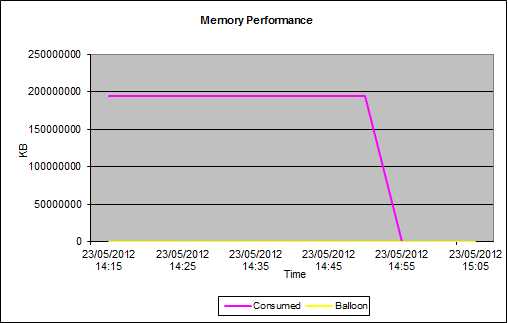
To continue the investigation, we now need to take a look at the memory resource to see if this is the constraining resource. As we can see from the chart, again memory is not the issue. Although the memory usage hovers around maximum, it is a little below.

Memory performance showing that utilisation is constantly under 24GB

20GB of physical RAM is available in the ESXi host, and as we can see by the performance chart, memory is heavily utilised for most of the test but does not max out. So taking into account CPU and memory performance during the testing, we have enough spare capacity in these resources to service 100 virtual desktops. We’re making good progress in ruling out the performance bottleneck, but we haven’t found it yet! Onwards to the datastore performance charts!

Datastore Performance


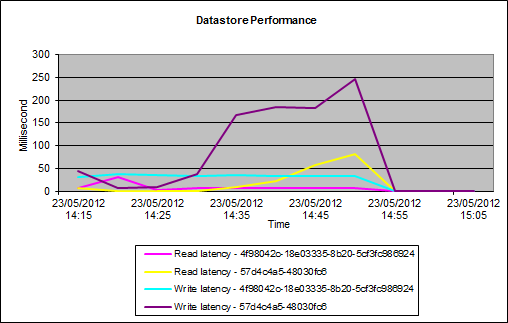
Looking at the performance charts for the datastore, we can clearly see an issue with performance straight away. The chart shows high latencies for both read and write performance, in the worst case we can see a latency of 247ms for write operations to one datastore in use.

Performance statistics showing a high disk read and write latency for the datastore

So the question here is, what is an acceptable disk latency? In broad terms, the following values are a reasonable rule of thumb :-

  • Sub 10 ms – excellent, should be the target performance level
  • 10-20 ms – indicates a problem, may cause noticeable application/infrastructure issues
  • 20 ms or greater – indicates unacceptable performance, applications and services such as virtual desktops will exhibit significant performance issues

Depending on your workload, you may well see spikes in performance at the storage level. These spikes can be acceptable as by definition they are sporadic and rare and generally do not impact long term performance. Microsoft lists acceptable disk latency spikes for SQL Server as 50ms, for example. I don’t know I especially agree with this number, but they know SQL Server a lot better than I do!

Performance Conclusions

Looking at the performance charts, we can see that the disk is the bottleneck. The latencies at the disk level are quite severe, and would result in a much lower VSIMax value than what was originally planned for. If we can add bandwidth to the disk layer, we can improve the density of virtual desktops per hypervisor host. In this case, we had local SAS disks in a RAID1 configuration. Even though third party storage appliances were in use to try and improve throughput, the physical disks themselves could not sustain the level of performance required.

As such, the desktop pool was moved to SAN based storage, which was a Fibre Channel storage on a NetApp storage device. One LUN was configured to host the desktop pool datastore, in a one to one relationship, as per best practices. As the storage now in use is enterprise grade, we would expect the disk latencies to be significantly reduced. As mentioned before, LoginVSI can be a really useful for tool modeling configuration changes and their impact and this is a good example. We’ve already proved that CPU and memory are not fully utilised, and that the disk latencies are causing a lower than expected VSIMax value.

Datastore performance statistics when the desktop pool is moved to SAN storage from local disk

The performance graph for a virtual desktop datastore on the NetApp datastore shows a much reduced latency of (on average) under 1 ms. As stated previously, any latency under 10ms is excellent, anything sub 1 ms is jet propelled! Now we have identified and removed the performance bottleneck, our VDI solution will scale to the required number of 100, as per the original design. Obviously CPU, memory and datastore are only a subset of the possible performance metrics we could have obtained, but any bottleneck is most likely to be around those resources.

Also, we could look at such metrics as network, but we’d be most likely to look at those metrics if for example mouse movement was delayed, or keystrokes were slow. In a LoginVSI test scenario as the virtual desktops are designed to be “stand alone”, there should  be minimal network traffic anyway.

Hopefully the two posts on LoginVSI have provided some guidance on how you can benchmark your environment, and also identify and rectify any bottlenecks that prevent you from scaling to the designed limits. I’d quite like to present this topic as a slide deck at a VMUG somewhere, sometime. Please let me know if that’s something you’d like to see!