04-07-14

VCAP-DTA – Objective 5.3 – Compile and Deliver Full or Streaming Applications

So now the prep work has been done to get Active Directory ready for ThinApps, the next thing to do is to actually roll some! The recommendation is to have a clean vanilla install of the platform you want to virtualise on (so a clean Windows 7 machine for an app to be deployed to Windows 7). I’ve heard people say to virtualise on XP and then you can have an app on the lowest common denominator, but for the exam that’s a level of detail we’re not concerned with.

  • Build and modify a ThinApp project – The first task is to roll an application using the ThinApp packager by running the Setup Capture wizard either remotely or from a locally installed copy. This is a five step process which basically involves Prescan, Installation, Postscan, Configure and Build. It’s all wizard driven as per below :-

setup-capture

In the interests of time in the exam, I’m guessing you’ll be asked to package something reasonably cheesy and small, such as 7-Zip. Run the pre-scan task to get a “before” configuration snapshot. This doesn’t usually take longer than a couple of minutes. Once it’s done, you’ll be asked to run the installer, do this now. Always worth making sure you run the installer as an Administrator, that can sometimes cause odd things to happen to applications (and may well turn up in the exam). Once the install has completed, hit the postscan button to perform the “after” snapshot of the local filesystem and registry. You may get a warning to ensure the application has completely installed, so just double check this before you continue.
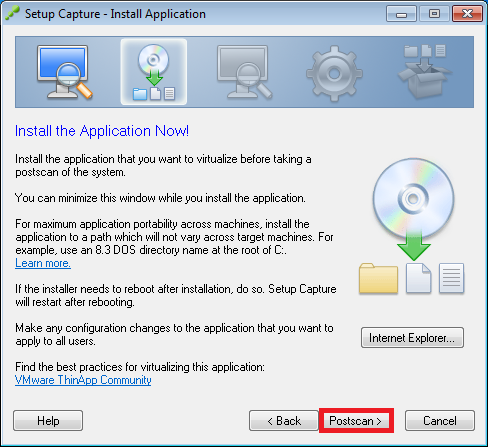
install


Once the post scan is complete, you’ll be asked to choose an entry point. This is basically the application executable. The wizard is usually pretty good at getting this right, but double check anyway. If you install a suite of products (say Office), you’ll need to add an entry point for each application such as Word, Excel, etc.

The next step chooses whether or not to manage the application via Horizon or if you’re updating an existing package. Choose as appropriate. The next step is to select which AD groups (if any) have access to the application. My guess is in the exam, you’ll be asked to restrict this app to a particular group and then test it.

groups

Next step is the application isolation mode. This is the kind of thing vendors love to test on exams. The default is merged isolation mode and allows the application access to read and write outside of the ThinApp sandbox. If I could dream up a test scenario for this, it would be that a virtualised app is playing up because it’s in WriteCopy isolation mode. This mode intercepts writes and stores them in the sandbox.  The use case for this is a highly locked down environment where you don’t want users writing to the local filesystem into system folders etc. The dialog is shown below:-
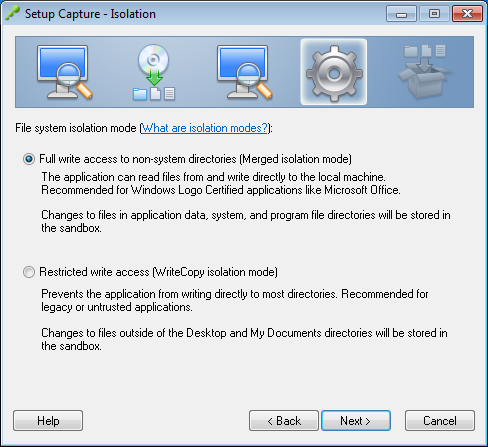
isolation-mode


The next choice is the sandbox location. This is typically left as the default of the user’s profile. This basically allows the user to roam and still have access to the application sandbox. There may be cases where a USB stick is appropriate, and it may be there is a scenario on the exam where you need to alter this from USB to Profile to fix a fault.

sandbox

Click Next and you’ll be asked if you want to send feedback to VMware. I highly doubt your exam score will have any bearing on what you choose here, but just in case it’s specified in the scenario… Then give the application an inventory name (AKA folder name in the Captures directory) and a path to store project files. If you’re running the Setup Capture from a network share, chances are this will be pre-filled for you, as below:-
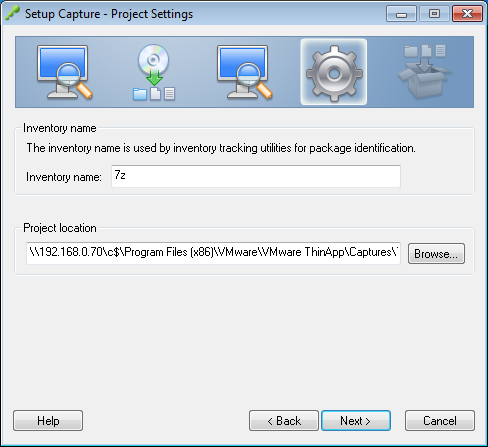
project

Select the primary data container (which is the application you wish to run) and whether or not you want to build the ThinApp as an MSI and whether or not to add compression, as per below. Click Save when you’re done:-

pdc

You’re now at the final step before the build process kicks off. You still have the opportunity at this stage to edit the package.ini file with any last minute adjustments you need before you start. There is still time at this stage too to go back in the wizard if you forgot to check the MSI build option in the previous screen. If all is well at this point, hit the Build button as shown below:-
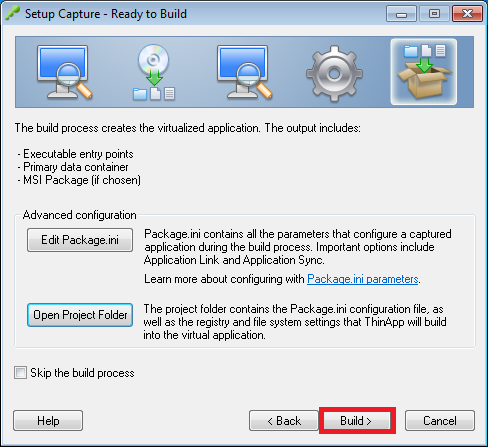
build


  • Configure MSI Streaming – This is a pretty easy task. Once you have a built ThinApp, open the package.ini file in the directory and open with Notepad or some other text editor. Find the section entitled [BuildOptions] (hint – it should be near the top!) and find the line that says MSIStreaming=0. Change this to MSIStreaming=1 and most important of all, don’t forget to rebuild the ThinApp with the new setting! To do this, run the build.bat file in the ThinApp package directory (i.e. the one with your ThinApped application files in). When the rebuild completes, copy the bin folder contents over to your ThinApp repo you previously defined.
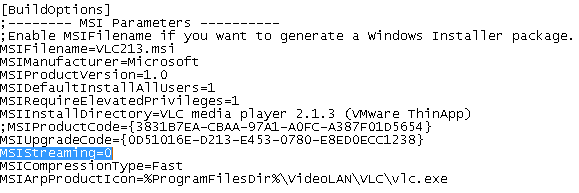
msistreaming


You will also then need to add the application into the ThinApp dialog in View Administrator. Go to Inventory | ThinApps | Scan New ThinApps.. | Select the ThinApp repo | Select the folder to scan for new ThinApp(s) | Next | Select any detected applications you want to add | Click Scan | Click Finish.

  • Deploy ThinApp applications to desktop pools – Once you have one or more ThinApps created and then added to View Administrator, you need to configure usage. In the case of desktop pools, this is easy to do. From View Administrator, choose Inventory | ThinApps | Pick your ThinApp from the list | click on the Add Assignment spin button | select Assign Pools | select the required pool(s) in the dialog and click Add | if the ThinApp has been set for streaming, choose the Installation Type radio button for either Streaming or Full.
  • Configure ThinApp entitlement using View Administrator – To be honest, I don’t understand this objective. You can assign ThinApps by pool or by specific desktop, and that is the limit of what View Administrator can do. It may be that this objective is dealing with desktop specific assignment, if so, simply repeat the steps above but choose individual desktops instead of pools.

 

02-06-14

VMUG North West England meeting – 18th June


Logo


That time is upon us again and the next NW England VMUG meeting will be taking place as usual in the Crowne Plaza Hotel in Manchester on Wednesday 18th June. The agenda at time of writing is listed below :-

Morning Design Workshop – Darren Woollard, Xtravirt
Lunch
PernixData Presentation: Re-Think Storage Performance – James Smith
Community Presentation: Home Lab Storage and Lessons Learnt – James Kilby
Calyx MS Presentation: Hybrid Cloud and Calyx Silver Lining
Community Presentation: VMware Certification – Chris Beckett
vNews – Ashley Davies
Raffle and vBeers at Tiger Tiger Printworks

You may notice yours truly at the bottom of the agenda. It will be my VMUG debut as a presenter and my session will basically cover the VMware certification tracks, mainly focussing on the VCAP exam formats. My hope is that I can demystify it a little bit and offer some words of guidance on the best way to prepare for them as I’ve passed three of them now.

To register, please visit the VMUG group page. Looking forward to seeing you there!


16-04-13

VMware related offers of the week – be quick! Just another quick post to bring to your attention a couple of offers that might be of use to fellow virtualisation professionals. Firstly, the new book from Chris Wahl and Steve Pantol “Networking for VMware Administrators” is currently 50% off cover price at Pearson IT Certification. I haven’t read the book as yet, but you can read reviews from my friends Ather Beg and Seb Hakiel to see what it covers. Quite apart from anything else, it fills a notable gap in the market and should be a useful addition to anyone’s library. This offer expires this Sunday, 20th April. ShowCover The other deal is for VMUG Advantage membership. If you are already a “free” VMUG member, you can upgrade to VMUG Advantage status with a 20% discount when you use the code ADVSALE at the checkout. This offer expires a little sooner, at 12pm Central Time tomorrow. Don’t ask me what that is in “real money”, aka GMT 😉 nvvyrqmf As Maury Finkle would say – “Do it!”

03-04-14

vExpert 2014 Announcement


VMware-vExpert-2014-400x57


So Tuesday saw the announcement of the 2014 list of vExperts and I’m delighted to say that I made the cut this year (after checking of course it wasn’t an April Fool!). Actually, it’s the first time I’ve applied and looking down the list, it’s a “who’s who” of vRockstars from around the globe, including around a dozen or so of my ex-colleagues at Xtravirt  who continue to add a lot of value to the community.

A big thanks of course go to the team who make vExpert possible, getting through 700+ applications in a month can’t have been all that easy! Thanks too to Jason Gaudreau, our TAM at VMware, who suggested I should go for it in the first place. When I look back at the last year, I’ve done a lot – 3 VCAPs, a load of blog content, study guides, plus the work I’ve done with VMware PSO and the account management team since I’ve been at MMC.

You’d think that I might sit back now and rest on my laurels, but if anything, it’s actually making me want to do more. I’ve already offered to present at our local VMUG, I’m blogging as often as I can and there will be more VCAPs this year I’m sure, as I start on the vCloud path once I’ve got NetApp, VCAP-DTA and Hyper-V out of the way!

Looking forward now to getting started and continuing to spread the gospel of virtualisation. Congratulations to all 2014 vExperts both new and returning and thanks for making the community awesome!


02-04-14

VCAP-DTA – Objective 5.2 – Deploy ThinApp Applications using Active Directory

Once we have a repository configured for our ThinApps, we next continue the groundwork by preparing Active Directory. We can then harness Active Directory groups to control access to the ThinApps.

  • Create an Active Directory OU for ThinApp packages or groups – From your domain server, go to Administrative Tools and select Active Directory Users and Groups. From wherever in the hierarchy the exam asks you to, right click and select New, Organizational Unit. Give the OU a name and click OK.
  • Add users to individual ThinApp package OU or groups – Again not really a View skill as such, just some basic AD administration. Now you created your OU(s) as above, to create a user right click on the ThinApp OU, click New, User, fill out the appropriate details, click Next, enter password information and click Next and Finish. To add a group, right click on the appropriate OU, click New, Group, give the group a name and select the type and click OK. To add users to an existing group, double click the group, click Members, Add and enter the user names and click Check Names. Click OK twice.
  • Leverage AD GPOs for individual ThinApp MSIs – Group Policy can be used to publish an existing ThinApp MSI without the need for a repository, or in parallel. To configure this, go to Administrative Tools, Group Policy Management. Right click the OU in which you would like to create the GPO. Select Create a GPO in this domain, and link it here (for a new GPO, or select Link an existing GPO if asked).Name the GPO and click OK. Once the GPO is created, right click on it and select Edit. In either Computer Configuration or User Configuration select Policies and then Software Settings. Right click on Software Installation and select New, Package. Browse to the network location of the MSI and select the MSI and then Open. Accept the defaults to Assign the package to a user or computer or click Advanced for further settings. Click OK. If you select Advanced, use the tabs across the top to make changes as appropriate and click OK. You may need to run gpupdate.exe to refresh Group Policy.
  • Create and maintain a ThinApp login script – The ThinReg utility can be used in an existing login script to deploy ThinApps to users. For example, in the NETLOGON share, you can add a line or lines into the logon script to invoke thinreg.exe. In it’s simplest form, just add the line thinreg.exe \\server\share\application.exe /Q. The /Q switch just runs the command silently. It may well crop up as a specific requirement on the exam.

01-04-14

VCAP-DTA – Objective 5.1 – Create a ThinApp Repository

There are two objectives in this section which are around setting up the ThinApp repository on the network to be used by the View infrastructure to distribute applications from. It’s telling that this topic has several tools references to it, so we’re going outside the confines of the View Administration guide really for the first time.

Again it’s difficult to imagine within the confines of a tight three hour exam that you will be asked to package up anything other than a relatively simple application, but be prepared for the odd curve ball. Ultimately as long as you understand the fundamentals, you can go a long way to scoring points on this objective, even if you don’t get it completely right.

  • Create and configure a ThinApp repository – The creation of the ThinApp repository is done from within View Administrator. Go to View Configuration, ThinApp Configuration, Add Repository then enter in a Display Name and Share Path (e.g. \\server\thinapp\repo) and add a Description if you like.
     
  • Configure a ThinApp repository for fault tolerance using DFS or similar tools – In order to create a DFS share, you need to have the File Services role enabled on the server. DFS is basically a network share made up of chunks of storage from different servers. You reach the DFS share by using the path \\domain\\dfsroot, so for example \\beckett.local\dfs-share. DFS also has file replication technology built in you can use for further resilience. I can’t really think you’ll be asked to do too much with DFS in the exam as much of this is based on the Windows server itself. What you will probably need to know is how to point a ThinApp repository at a DFS share (so use the example syntax above). This is pretty much all that is listed in the ThinApp reference materials.

27-03-14

North West England VMUG Meeting Review – 26th March

I had the pleasure of yesterday attending the latest North West VMUG meeting at the Crowne Plaza hotel in Manchester. As usual, the event was a half day event but this time with the added extra of some free training in the morning provided by community stalwart Mike Laverick. I didn’t attend this myself, but I’m sure it was very well recieved by those that did attend.

Owing to the late withdrawal of local community hero Ricky El-Qasem, there was a slight rejig to the schedule. Dell basically provided a “twofer” session, showing off their DVS solution stack and also the new VRTX (pronounced “Vertex”) all in one server stack in a single 5U unit. We then had a session from local cloud providers 1st Easy and to round the day off, we had an interesting session from Mike Laverick around the concept of “FeedForward”.

So Dell kicked off with Simon Isherwood discussing their DVS model, and I was immediately wishing they’d call it something else as a DVS is something totally different to me – a Distributed Virtual Switch! Such is life in the IT industry that many acronyms overlap, so we just have to live with it. Not Simon’s fault, I’m sure. The purpose of the DVS is that it provides a reference architecture for deploying not just Horizon View, but Citrix XenDesktop and other solutions atop Dell hardware and services.

As many will be aware, Dell have been on a bit of an acquisition spree in the last few years, notably picking up Quest and also Wyse in that time.  That’s significant because Quest have vWorkspace, which is also a brokered VDI solution. Wyse is significant as you could argue it’s the “de facto” choice for thin and zero client solutions in a VDI deployment.

As always there were a raft of facts and figures, but some of the more telling stats were that it has been forecast that by 2016 there will be 200 million employees taking part in BYOD initiatives and Dell have noticed anecdotally that there are many more clients coming forward now looking to do something in the VDI space.

What was good to hear was that Dell are as agnostic as possible in their stack, so obviously they would prefer you to go down the all Dell route of Dell servers, professional services, networking and storage, but where brownfield sites have existing arrangements for any of the previous items, Dell can work within these boundaries to design and implement a VDI solution. The DVS model provides white papers on compatibility and scalability testing, to remove those time consuming steps from a VDI deployment project and give you some confidence on what sort of scales you can achieve.

There were other discussion items around the use of nVidia Grid and Lynx cards to provide high end graphics for VDI solutions but the thing that probably turned heads the most was the Cloud Connect stick. This is basically a stick not much bigger than a regular USB stick that has an MHL port, USB on the go support and a slot for additional SD storage. What you do is basically plug the stick into a HDMI socket (and you can loop the USB on the go cable for powered support), attach a bluetooth mouse and keyboard and it essentially becomes a thin client. The stick is around £130 and is an Android device with View, XenDesktop and Google Play support. Dell have rubbed some awesome sauce on this device!

All the thin/zero devices are managed via Cloud Client Manager, which is a web based service that provides MDM services such as device wipe, firmware updates etc. As a matter of fact, you cannot use a Cloud Connect stick unless it has access to Cloud Client Manager, according to Dell. Well worth checking out if you get the chance.

We then had a quick run through the development of the VRTX platform. It seems the main driver for the design of this solution was smaller businesses or branch offices where the server room was generally a cupboard with random bits of hardware, some four gangs stretched across the room and sone strategically placed desk fans. The purpose of VRTX is to take all of these components and shrink them down into a 5U form factor chassis. It can be rack mounted or free standing and takes up to 4 half height blade servers or 2 full height blades. It also has internal DAS storage and comes with a variety of options around configuration choices.

One feature Dell was particularly keen to emphasise was the volume of the chassis itself. Usually you would expect enterprise grade server platforms to sound like a plane taking off, and that’s usually the case, but the VRTX itself has been designed to be whisper quiet for a small office setting, so theoretically you could have it powered on in an open plan office and nobody would ever know. Dell switched it on during the presentation and I can verify it was indeed a very quiet piece of kit!

For large scale geographical deployments, there is a web based management tool with a management map so administrators can drill down and manage VRTX devices. A proof point for the solution is Caterham F1, who have consolidated their track side kit down from several flight cases down to just a few VRTX devices.

Two sneaky pictures of a powered on VRTX unit!

IMG_20140326_152439


Then came Stephen Bell, the MD of local cloud provider 1st Easy. This presentation was slightly more abstract with the title “From waterwheels to cloud”. The premise of this presentation was that during the industrial revolution, choices were made around how power was generated and the waterwheel was a fixed solution that had inherent flaws. This then lead on to the discussion on energy costs, which these days seem to be the primary driver for virtualisation.

I seem to recall Stephen said their energy costs had gone up three fold in eight years, and that trend is only set to rise. As such, they made the strategic decision to consolidate servers into VMware technologies such as vSphere and vCloud Director, to allow them to provide the same level of service but at a much smaller footprint and therefore cost. Also, as opposed to the concept of a waterwheel being a fixed and rigid design model, virtualisation and cloud had allowed them to become more agile as a service provider, and this was a key business driver from the word go.

The final main presentation was from Mike Laverick, discussing the concept of “FeedForward”. He started the session by discussing how user groups tend to be dominated by vendors, mainly because attendees fear presenting themselves. This can be for a variety of reasons, for example :-

  • “I only have a few hosts”
  • “Nobody is interested in my small project”
  • “My project failed, who wants to hear about that?”
  • “I’m boring!”
  • “I’m not confident enough to present in front of an audience”

A few years back, I was part of the Novell community in the UK and Europe and we had similar problems trying to get customers to present to the UG. The fact is, when a customer presents, it re-invigorates the audience. Instead of the same old faces and voices, and presentations about similar storage solutions for example, you get some “real world” insight into what worked, what didn’t worked, what we learned etc.

The drive now is to try and engage VMUG members to present more frequently by employing the “FeedForward” mechanism. In essence, what this is is a mentoring system, whereby a senior member of the community will help you design and present your slide deck, offer guidance on what works and what maybe doesn’t and even maybe stand up with you when you do it.

The naming as it suggests means you get constructive dialog going before you present rather than after, so it’s not feedback as such. So when you come to the big day and you present to your local VMUG, you can have confidence that what you’re presenting is interesting, factually correct and has been proof read by a different pair of eyes.

So for my sins I volunteered to present at the next meeting on June 11th, I’m thinking about discussing VMware certification. I’ve done a bagful of VCPs and VCAPs, so it seems like something I can talk about for 45 minutes!

To round things off, we had the usual vNews update from Ashley Davies. This covered topics such as vSAN and there was also some discussion on a bug with Windows 2012 when using E1000 that causes data corruption. As we use VMXNET3, we haven’t seen this thankfully, but one to be aware of.

As usual, thanks to VMUG leaders Steve Lester and Nathan Byrne and sponsors Dell and 1st Easy for another super event. The vBeers afterwards were good fun and those mini fish and chips portions were very popular!


21-03-14

Upgrading to vSphere 5.1 U2

So right now I’m in the midst of upgrading an existing 5.1 U1 estate to U2. I have come across a couple of interesting things that I thought were worth sharing. Firstly, we’ve seen a significant number of Proliant Dl580s go into a purple screen of death (PSOD) during boot. Seems to be only G7s rather than older generations, but significant none the less.

One thing worth trying is to disable any additional NIC cards in the BIOS. You can do this by hitting F9 right at the end of the POST cycle. You do this from within the PCI configuration, I forget precisely where. We even added the last Proliant Service Pack and updated the firmware and the problem remained.

The fix for us was to upgrade the tg3 driver to the latest version available. You can get this from here (login required). Either update from the command line on the host or be lazy like I was and upload the offline bundle to the VUM server and create and apply a patch baseline from there.

The one other thing I wanted to share was a handy PowerCLI one liner. I know this is probably documented elsewhere, but when you are upgrading large clusters, it’s handy to see at a glance where you are up to. Connect to the vCenter server from the PowerCLI window and run the following command :-

PowerCLI C:\Program Files (x86)\VMware\Infrastructure\vSphere PowerCLI> get-cluster “My-Cluster” | get-vmhost | Select “Name”, “Build” | sort-object -Descending “Build”

(Obviously replace My-Cluster with the name of your cluster!). You should get output like this :-

Name                                    Build
—-                                    —–
host1.beckett.local                               1612806

host2.beckett.local                               1612806
host3.beckett.local                              1065491

So as you can see, host3.beckett.local is still on 5.1 U1, whereas the other two are on 5.1 U2 plus a newer version of esx-base.

07-03-14

VCAP-DTA – Objective 4.1 – Build, Upgrade and Optimize a Windows Desktop Image

Section 4 is based around the building and maintaining of desktop images. This is a pretty broad area that can encompass a whole raft of different settings and considerations, so again we need to try and be smart and take a guess at what the exam might ask us to do, really based on the very tight time constraints of the exam.

The tools reference lists only the View Administration guide and View Administrator, so this gives us some idea of the scope of the question. My guess is we’ll have a least a vanilla build of Windows 7 with no VMware Tools or View Agent. There may also be some other tasks to complete, such as enabling remote access and also tuning for PCoIP performance (there may well be the odd RDP question on the exam, but my expectation is PCoIP will be the primary focus as RDP is pretty much deprecated).

There is only one skill and ability being measured in this objective.

  • Create, configure, optimize and maintain a base Windows desktop image for View Implementation 
    • Pre-requisites of Windows installation and available Active Directory will most likely already have been completed for you.
    • Add the View users group to the local Remote Users group in Windows
    • Ensure you have administrative rights to the VM before proceeding to installation
    • Enable 3D rendering on the VM if asked to do so
    • Install VMware Tools and ensure NTP is set to an external source, not to the host
    • Install updates, service packs etc
    • Install anti-virus (seems unlikely this will come up, but you never know)
    • Install smart card drivers if required (again, seems unlikely)
    • Set power option to Turn off the display – never (required for PCoIP)
    • Set Visual Effects – Adjust for best performance (done in Control Panel, System, Advanced System Settings, Performance Settings)
    • Configure the IP stack (DHCP, DNS, etc)
    • Join the desktop to the Active Directory domain
    • Install the View Agent
    • Following steps are listed as optional, but may still come up on the exam
    • Disable unused ports such as LPT1, COM1, etc
    • Choose a basic theme, disable the screen saver and set the background to a solid colour, check hardware acceleration is enabled
    • Select the high performance power management profile
    • Disable Indexing Service
    • Remove restore points (disable?)
    • Disable System Protection on C:\
    • Disable any other unneeded services in the Services applet
    • Delete hidden uninstall folders, such as folders in C:\Windows starting with $NtUninstall
    • Clear down all event logs
    • Run Disk Defragmenter and Disk Cleanup

As part of this section is “maintain”, it might well be possible you’re asked to update the base image with a couple of patches and recompose the pool.

VCAP-DTA – Objective 4.2 – Deploy Applications to Desktop Images

So now we have the desktop image built, patched and optimised, we now have to install applications. Objective 4.2 has two skills and abilities – identifying MSI installation options and determining when to use native installs.

  • Identify MSI installation options
    • I’m not sure I understand what is being asked on this one beyond what the command line switches for msiexec.exe are and how they affect application installations
    • There are several command line options that can be used with MSI based installers, the best way (and probably the quickest) for the exam is to simply run msiexec /? from a command prompt to get a list of them all. In fact, you don’t even need the question mark, just run the command with no switches to get a summary list of your options. This screen is shown below :-

msiexec

  • Determine when to use native installs
    • Again another skill/ability being tested that is worded a bit strangely, in my opinion. When would you natively install an application? What is implied by the term? I can only presume this question is based around ThinApp, so when would you embed an application into the base image and when would you ThinApp it?
    • If my assumption/interpretation above is correct, then we have to look at the limitations of ThinApp to guide us on what applications can and can’t be virtualised and added to the ThinApp repository
    • The limitations of ThinApp 4.7 are listed in the user guide, and amongst other things include :-
      • Applications requiring the installation of kernel mode drivers
      • Anti-virus, firewall products
      • Scanner and printer drivers
      • Some VPN clients
      • Device drivers (mouse etc.)
      • Shell integration is limited
      • Network DCOM is not supported

06-03-14

VCAP-DTA – Objective 3.2 – Configure and Manage Pool Tags and Policies

This objective is relatively short and only has one skill being measured, the ability to correctly configure tags. As a refresher, tags can be used to provide a level of security on connection servers and pools and gives the ability to provide what VMware refers to as “Restricted Entitlement”, which means Connection Servers can only access certain pools. The most obvious and common use case for tagging is when Security Servers are in play, and you want to restrict incoming users from the internet to only use particular Connection Servers.

So then, with only one skill/ability being measured in this section, let’s get to it!

  • Configure tagging for specific Connection Server or security server access – Tagging is done from within View Administrator. You can set tags on Connection Servers and also on pools. One thing you need to be aware of is tag matching – this defines whether or not a user is permitted access to a desktop and will most likely be something you’ll be tested on in the exam.
    • To set a tag on a Connection Server, go to View Administrator and View Configuration, Servers, Connection Servers, choose your Connection Server, click Edit and in the top box, assign the tags you want to use. The example below illustrates two tags in use. This is an internal Connection Server, so it’s been tagged as “Internal” and “Secure”. Note a comma separating multiple tags.

tags

    • To add tags to an existing pool, in View Administrator go to Inventory, Pools, select the Pool you wish to tag, click Edit and then Pool Settings. At the top of this screen is General and Connection Server Restrictions. Click Browse and click the Restricted to these tags radio button. Select the appropriate tag as per below :-

pool-tags

    • Click OK to apply the setting.
    • To apply a tag during pool creation, when you get to the Pool Settings screen, you basically access the same dialog screen. So under the General heading at the top, go to Connection Server Restrictions, click Browse and select the appropriate tag as shown above.
  • In respect of tag matching, be aware of the following matrix as you may be asked to troubleshoot an access issue during the exam which may be caused by incorrect tagging :-
    • Connection Server no tags – Pool no tags – access permitted
    • Connection Server no tags – Pool tags  – one or more tags – access denied
    • Connection Server one or more tags – Pool no tags – access permitted
    • Connection Server one or more tags – Pool one or more tags – access depends on tags matching

VCAP-DTA – Objective 3.3 – Administer View Desktop Pools

This objective is the guts of spinning up virtual desktops for users, and covers the full range of desktop pool types available. So full and linked clone pools, assignment types, Terminal Services or manual pools, user and group entitlements and finally refreshing, recomposing and rebalancing pools. Sounds like a lot, but actually there’s a nice flow to this objective and it should be quite straight forward.

  • Create and modify full or linked-clone pools – To create a new pool in View Administrator, go to  Inventory, Pools, Add. The pool creation wizard is generally pretty easy to follow and there’s not much value I can to it here. Click Next until you reach the third screen of the wizard, entitled vCenter Server. This screen provides the option for Full virtual machines or View Composer Linked Clones. Select the appropriate radio button for the type you want and continue on through the screens to finish the pool creation wizard. The choice selection screen is shown below :-

pool-type

    • To modify an existing pool, go to Inventory, Pools, select the pool you are interested in and click Edit. You can change various settings on an existing pool, such as the pool display name, remote protocol settings, power management, storage accelerator etc. You cannot change the pool type once it has been created.
  • Create and modify dedicated or floating Pools – To create a floating pool, you can only select Automated Pool or Manual Pool in the initial pool definition type screen. When you click Next, you then get presented with the choice of creating a Dedicated or Floating pool. Remember dedicated pools mean once a user is assigned a desktop, they own it “forever” whereas a floating pool is in essence the “next cab off the rank” and is not persistently tied to a single user. Each type has their own use case. From here, complete the wizard with the required settings to provision the pool.
    • To modify an existing pool, go to Inventory, Pools and select the pool you wish to modify. Click Edit and make changes as appropriate. With a dedicated pool, your only option is to enable/disable automatic assignment. A floating pool has additional options for editing settings, including vCenter Settings (changing datastores etc.) and also Guest Customizations.
  • Build and maintain Terminal Server or manual desktop pools – Manual and Terminal Services pools are an extension of View by adding in the View Agent to an existing virtual machine, Terminal Server or even a physical PC or blade PC.
    • To add a manual pool, ensure the agent is installed on the endpoint (and you may be tested on this!), go to Inventory, Pools, Add, Manual Pool. Again the wizard is pretty straight forward, populate all the settings you need.
    • To add a Terminal Services pool, again make sure the View Agent is installed on the endpoint before you proceed.
  • Entitle or remove users and groups to or from pools – Once you’ve built your pools, you also need to add an entitlement. This is simply users and/or groups from Active Directory that you want to grant access to desktops to. This can be done in one of two ways – either when the pool is created (final wizard screen, tick the box for entitle users after this wizard finishes) or afterwards if you forget during pool creation, or if you want to add additional users or groups. If you select to entitle on completion, click Add and use the search box to find the users or groups you want to entitle, as shown below :-

entitlements

    • To add entitlements retrospectively, go to Inventory, Pools, Entitlements and this brings you into the same dialog as above where you simply repeat the same steps to add users and/or groups.
  • Refresh, recompose or rebalance pools – Depending on your design or operational procedures (or if you’re asked to by the exam!), you will need to refresh, recompose or rebalance your desktop pools. As a refresher, this is what each term means :-
    • Refresh – Reverts the OS disk back to the original snapshot of the clone’s OS disk
    • Recompose – Simultaneously updates all linked clone machines from the anchored parent VM, so think Service Pack rollout as a potential use case
    • Rebalance – Evenly redistributes linked clone desktops among available datastores
    • To perform these operations, the desktops must be in a logged off state with no users connected. Go to View Administrator, Inventory, Pools and select the pool you want to manage. Under the Settings tab, click the View Composer button and choose the operation – refresh, rebalance or recompose
    • When you choose the refresh action, you specify when you want the task to run and whether you want to force users to log off or wait for them to log off. You can also specify a logoff time and message, this is customisable from Global Settings. Check your settings and hit Finish to start the operation.
    • When you select recompose, select the snapshot you want to use and whether or not to change the default image for new desktops. Again run through the scheduling page and choose your settings, click Next and Finish.
    • When you select rebalance, you simply fill out the scheduling page and click Finish.
    • Remember if you’re asked to set a custom logoff message, this is done from View Configuration, Global Settings, Display warning before forced logoff.