25-07-14

VCAP-DTA Section 8 – Secure a View Implementation

Objective 8.1 – Configure and Deploy Certificates

Section 8 assumes we now have a fully upgraded and working View 5.2 pod and end users are happy as we’ve sorted out their clients. Now we have to circle back and look at ways of locking down and securing the View pod against unauthorised access.

  • Configure 2 Factor/Smart Card Authentication including truststore – 2 Factor authentication is configured on a per Connection Server basis. So go into View Administrator, select View Configuration, Servers and then the Connection Server tab. Select the Connection Server you want to configure for two factor authentication and select Edit. Click the Authentication tab and you’ll see the dialog as shown below.
    • You must first obtain the root Certificate Authority certificate from the CA being used to sign the certificates on the smart cards
    • Use the keytool utility to import the CA certificate into the server truststore file using the command syntax keytool -import -alias alias -file root_certificate -keystore truststorefile.key
    • Copy the truststore file into the sslgateway folder on either the Connection or Security Server, depending on the scenario. This is typically located at %PROGRAMFILES%\VMware\VMware View\Server\sslgateway\conf\
    • Smartcard authentication has three options in the drop down, Not Allowed, Optional, Required. Choose the appropriate option. You can also check the box to disconnect sessions on smart card removal, for added security.

2factor


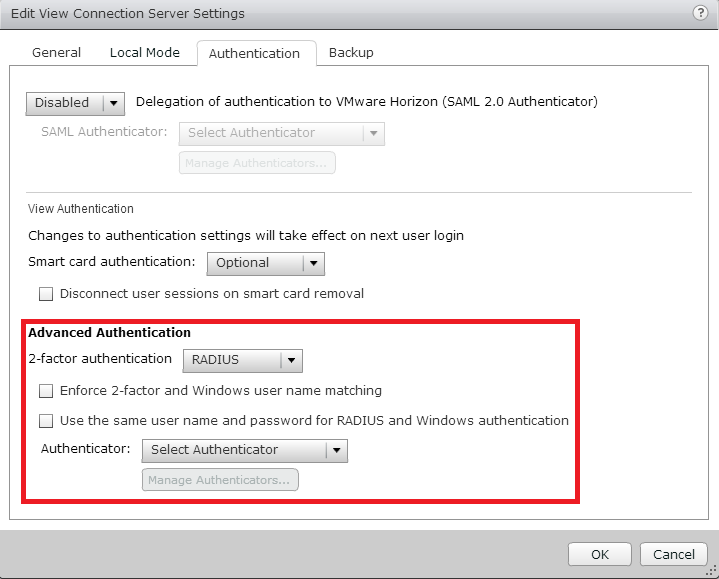
  • In the Advanced Authentication section, choose whether 2 Factor authentication is Disabled, RSA SecurID or RADIUS. For exam purposes, I’m assuming it will be RADIUS as this is not a proprietary solution.
radius

  • With RADIUS selected, choose whether to Enforce 2-factor and Windows user name matching and/or Use the same user name and password for RADIUS and Windows authentication.
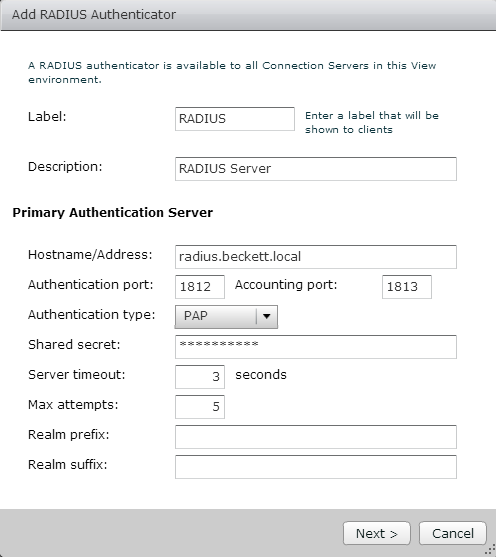
    • In the Authenticator drop box, choose Create New Authenticator and fill out the RADIUS server details similar to below:-
radius-server


  • Complete the wizard to finish the setup of RADIUS.


  • Configure and deploy View certificates – By default, View Connection and Security Servers use self signed certificates. This in itself is fine and will work, but you will see warnings in View Administrator to say these certificates aren’t trusted as they weren’t issued by a trusted Certificate Authority. In order to secure your Connection and Security servers, you will need to perform the following process:-
    • Create a Certificate Signing Request (CSR) from the server you wish to  add a trusted certificate to (you can use Windows certreq tool to do this). The View documentation has a request.inf file you can re-use for this purpose (certificate must be in PKCS12 format)
    • Obtain a signed certificate from the issuing CA
    • Verify the CSR and the private key are stored in the local computer’s certificate store by running certmgr.msc and looking in the Certificate Enrolment Request folder
    • Import the certificate into the local store using certreq -accept cert.cer
    • Once the certificate is imported, in Certificate Management, add the friendly name of vdm to the certificate and install the root CA and intermediate (if appropriate) certificate into the certificate store
    • Restart the Connection, Security or Composer Services for the changes to take effect
  • Configure certificate revocation checking using the locked.properties file – Certificate Revocation is another security step which prevents SSL certificates that have been listed as revoked by the issuer to be reused for secure services. In order to configure View to use certificate revocation lists (CRL), you need to amend the locked.properties file which can be found in %PROGRAMFILES%\VMware\VMware View\Server\sslgateway\conf\ with the following lines:-
    • enableRevocationChecking=true
      enableOCSP=true
      allowCertCRLs=true
      ocspSigningCert=te-ca.signing.cer
      ocspURL=http://te-ca.lonqa.int/ocsp
    • Where ocspURL is the URL of the OCSP Responder. Note the above is used for smartcard certificate checking, View server certificates have CRL checking built in.
    • If you are using your own CA and cannot include CRL information in the certificate, amend the CertificateRevocationCheckType registry key under HKLM\Software\VMware, Inc.\VMware VDM\Security and set the appropriate level as below:-
      • 1 – Do not perform CRL checking
      • 2 – Only check the server certificate, don’t check any other certificates in the chain
      • 3 – Check all certificates in the chain
      • 4 – Check all certificates except the root (default)
  • Perform a certificate replacement using sviconfig – Adding a certificate to  View Composer follows pretty much the same steps as above (Create CSR, get signed certificate, import certificate) but with one additional step. Stop the View Composer service and run the command sviconfig -operation=ReplaceCertificate -delete=false  to use the new certificate added to the local certificate store. The delete=false option is mandatory and false will not delete the old certificate from the Windows certificate store. Enter the number of the certificate you wish to use and then finally restart the View Composer service for all changes to take effect.


Objective 8.2 – Harden View Components and View Desktops

  • Open firewall ports used by View components – Regardless of whether you need to change the server or client end firewall settings, this is done via Firewall.cpl or Windows Firewall, depending on how you prefer to run these things. By default during View component installation, if the installer detects Windows Firewall is running, it will attempt to make the required firewall changes to allow View to operate, so ports such as 80, 443 (HTTP(s) for authentication), 1472 (PCoIP), 3389 (RDP), 32111 (USB redirection), 9427 (MMR), 4001 (JMS), 50002 (PCoIP). Verify these ports are enabled at both ends where appropriate and ensure the correct protocol is used (UDP or TCP). Chances are in the exam you’ll be asked to add a firewall rule to facilitate a connection. Also don’t forget there are three firewall profiles – domain, private and public networks. Make sure this doesn’t catch you out. To make changes to the Windows Firewall, select Allow a program or feature through Windows Firewall. All installed VMware services should be listed, add a tick box to which services you want to allow through, as shown below:-

Firewall

  • Disable Windows services – View has several services it uses in the normal course of operations, including:-
    • VMware View Connection Server
    • VMware View Framework Component
    • VMware View Script Host
    • VMwareVDMDS
  • Typically only the services required will be started automatically, but in the exam there may be a case of a service started that shouldn’t be, or vice versa. At  a glance, the prime suspect would appear to be VMware View Script host, which is usually disabled but must be enabled  if scripts are to be run against the server. To enable and disable services, go to Start | Run | services.msc. All View services are prefixed with “VMware”, so they’re all pretty easy to spot in the services list. Whichever service you wish to configure, right click and go Properties and change the Startup Type to Disabled, Manual or Automatic. You can also stop a service from this dialog.

services


  • Configure appropriate message security mode – Message security mode assigns security to JMS messages, which the method that View components use to communicate with each other. By default, this setting is enabled so all JMS messages that are not signed correctly are rejected. This can be amended to disabled or mixed, where message security is enabled but not enforced. Generally this setting is only required with legacy versions of View (3.0 or earlier). To configure this setting, go to View Administrator and then View Configuration | Global Settings | Security Pane Edit  and choose the required mode from the drop box as shown below:-

securitymode

  • Configure SSL for appropriate View functions – By default, View uses HTTPS redirection already for View client and administration traffic, in addition to Local Mode SSL encryption. As this is already enabled by default, I can only surmise that it will have been disabled somewhere for the purposes of the exam. Also, ensure the link to vCenter goes over port 443 and the View Composer port is 18443 by default, which is also secure. All of this is configured from View Administrator, under View Configuration | Servers. Select the vCenter Server or Connection Server you wish to configure and select Edit to make the required changes. The Local Mode settings are under the Connection Server under the Local Mode tab.
  • Configure secure tunneling – Secure tunneling is used when additional security or direct connections to the virtual desktops are not possible or desirable. All three protocol methods (RDP, PCoIP and HTML/Blast) have their own secure gateway tunnel and this is configured from within View Administrator. Go to View Configuration | Servers | Connection Servers and click Edit. From here, the General tab lists all gateways where they can be enabled/disabled and configured. Simply check the box next to the gateway to enable it and change any URLs/ports as required, as shown below. Remember the PCoIP Secure Tunnel URL Is always an IP address!
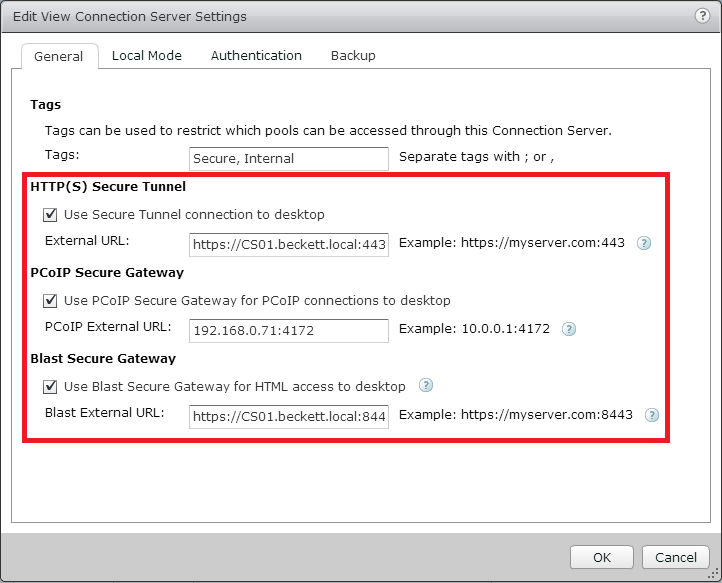
tunnels


  • Configure security settings in the View Agent Configuration Template – To configure security settings for the View Agent, you need to add the ADM template file into Group Policy Management (or you can add it in locally to your master image). The file is called vdm_agent.adm and can be found on the Connection Server under %PROGRAMFILES%\VMware\VMware View\Server\extras\GroupPolicyFiles. Once added into Group Policy Management, various options can be set as shown below, including:-
    • USB Configuration (allow/disallow USB device types, models etc.)
    • Agent Configuration (Commands to run on connect/reconnect etc.)
    • Agent Security (allow unencrypted connections from older legacy devices)

viewagent


VCAP-DTA Section 9 – Configure Persona Management for a View Implementation


Objective 9.1 – Deploy a Persona Management Solution

  • Create a Persona Management repository – To create a View Persona Management (VPM) respository, simply create a regular file share on a Windows server on the network. This can be a NAS device or a Windows Server, it doesn’t really matter. When creating the VPM share, note the following guidelines from the View Persona Management guide:-
    • The shared folder does not have to be in the same domain as View Connection Server
    • The shared folder must be in the same Active Directory forest as the users who store profiles in the shared folder
    • You must use a shared drive that is large enough to store the user profile information for your users. To support a large View deployment, you can configure separate repositories for different desktop pools
      • If users are entitled to more than one pool, the pools that share users must be configured with the same profile repository. If you entitle a user to two pools with two different profile repositories, the user cannot access the same version of the profile from desktops in each pool
    • You must create the full profile path under which the user profile folders will be created. If part of the path does not exist, Windows creates the missing folders when the first user logs in and assigns the user’s security restrictions to those folders. Windows assigns the same security restrictions to every folder it creates under that path
      • For example, for user1 you might configure the View Persona Management path \\server\VPRepository\profiles\user1. If you create the network share \\server\VPRepository, and the profiles folder does not exist, Windows creates the path \profiles\user1 when user1 logs in. Windows restricts access to the \profiles\user1 folders to the user1 account. If another user logs in with a profile path in\\server\VPRepository\profiles, the second user cannot access the repository and the user’s profile fails to be replicated
  • Implement optimized Persona Management GPOs – To add VPM group policies, you first need to add in the ADM template file to Group Policy Management. You can add it locally to a parent image, but then you will lose management control. To enable management domain wide, adding the template into Group Policy Management and linking it to an OU in Active Directory is preferred. The ADM template is called ViewPM.adm and can be found on a Connection Server under %PROGRAMFILES%\VMware\VMware View\Server\extras\GroupPolicyFiles. Once added into Group Policy Management, the following settings folders are available:-
    • Roaming and synchronization
    • Folder redirection
    • Desktop UI
    • Logging
  • There are dozens of different settings available to VPM in the group policy, so the exam will probably have some specific requirements on you to configure. Two settings you will need are the first settings in the Roaming and synchronization folder, Manage User Persona and Persona Repository Location. Set the first setting to Enabled to switch on VPM, and here you can change the default synch period from 10 minutes to something else. For Persona Repository Location, set this to Enabled and configure the UNC path to the share you previously configured, \\dc01.beckett.local\VPRepository for example.

vpmsync

  • Implement optimized Windows Roaming Profiles with Persona Management – There may be some cases whereby you do not want to constantly sync parts of the user profile every 10 minutes using VPM. Perhaps there is an application dependency. What you can do within the GPO is set some folders to be exempt from the ongoing sync process and only sync the changes to the VPM repository when a user logs off. To do this, go to your VPM group policy and set folder exceptions as shown below:-

syncexceptions


Objective 9.2 – Migrate a Windows Profile


  • Ensure pre-requisites are met for a profile migration – The pre-requisites from the View Admin guide are listed below:-
    • Run the migration utility on a Windows 7 or Windows 8 physical computer or virtual machine
    • Log in to the Windows 7 or Windows 8 system as a local administrator
    • Verify that the system on which you run the utility has network access to the CIFS network shares that contain the source V1 path and destination V2 path
    • Verify that the user account that runs the utility is a local administrator on the destination CIFS network share
    • If the user account that runs the utility does not have full ownership of the user profiles that are migrated, specify the /takeownership option with the utility
      • This option passes ownership of the user profile folders to the utility during the migration. Ownership is returned to the users after the migration is completed
    • Ensure that the users whose profiles are being migrated are not logged in to their Windows XP systems when you initiate the migration
      • If a user is in an active session during the migration, the migration might fail
    • Ensure that users do not start using their Windows 7 or Windows 8 desktops before the migration is completed
      • When users start using their View desktops, View Persona Management creates V2 profiles for the users. If a V2 profile already exists before the migration runs, the utility leaves the existing V2 profile in place and does not migrate the legacy V1 profile
  • Perform profile migration using migprofile.exe – The migprofile.exe utility is installed with the View Agent and can be found under %PROGRAMFILES%\VMware\VMware View\Agent\bin or can be installed standalone. The utility can be used to migrate V1 profiles (Windows XP) en masse from a shared repository to another repository in V2 format, or used on a piecemeal basis to upgrade a user at a time, if required. The examples below are taken from the View Persona Management guide:-
    • migprofile.exe /s:\\file01\profiles\* /takeownership performs an in-place upgrade of profiles on a network share from V1 format to V2. The latter have the .V2 extension added to the profile folder

    • The following example migrates the V1 profile for the user ts115 on the computer devvm-winxp to the remote path \\file01\profiles. The utility takes ownership of the user profiles during the migration:

      migprofile.exe /s:\\devvm-winxp\c$\documents and settings\ts115 /t:\\file01\profiles\ /takeownership

  • Modify migration configuration file – The migprofile.exe utility can also apply settings from a settings file written in XML. This file uses XML tags to pre-populate migration settings and can be named anything as long as it has an XML extension. Using this settings file is specified on the command line when running the migration utility and for full details on the XML file format, please refer to VMware’s online guide. Typical tags include:-
    • <source> <profilepath>source_profile_path</profilepath> </source>

    • <target> <profilepath>target_profile_path</profilepath> </target>

    • <includefolders>Personal, Desktop, Start Menu, NetHood</includefolders> (Migrates only specified folders instead of all except Cache, History and Local AppData, by default)

  • To run the migration utility with a settings.xml file, use the following syntax:-
    • migprofile.exe migsettings.xml (where the latter file name is your settings file)


Section 10 – Troubleshoot a View Implementation


Objective 10.1 – Troubleshoot View Pool creation and administration issues


Interestingly, the exam blueprint doesn’t give you any real pointers as to what skills and abilities are being measured for this objective, so let’s have fun and speculate on some things that might occur that we need to troubleshoot during pool creation and administrative tasks:-

  • Pool provisioning fails
    • Check storage space
    • Storage overcommit on linked clones
    • View Agent is installed properly
    • DNS resolution is working
    • Windows Firewall issues
    • View Composer service is available
    • Users have entitlements to the pool
    • User creating the pool has the correct permissions in View Administrator
    • Drill into the pool in View Administrator and check the Events tab for hints as to what’s wrong
  • Administration Issues
    • Check the View Connection Server service is running
    • Check Adobe Flash is installed in the browser
    • Check the user has appropriate permissions
    • Check the web browser is supported (chances are remote, but you never know)
    • Check View Administrator session timeout (default is 30 minutes)
    • Dashboard not updating – check Enable Automatic Status Updates is enabled in View Administrator
    • Red lights in View Administrator dashboard – drill into them to get the events view to see what is wrong
    • Verify vCenter permissions for any service accounts used for vCenter access, Composer provisioning etc.


Objective 10.2 – Troubleshoot View administration management framework issues

  • Potential Framework Issues
    • Can’t access View Administrator – check View Component Framework is running
    • Can’t access View Administrator – check View Web Component service is running
    • No Events being logged to the Events Database – check the Event Configuration is correct in View Administrator and SQL is up
    • View not sending messages to Syslog server – check Syslog configuration under Event Configuration section

Objective 10.3 – Troubleshoot end user access


  • Potential End User Issues
    • Check Windows Firewall at both ends that ports 80,443,4172,3389 are open as a minimum
    • Check the pairing between the Security and Connection Servers if appropriate
    • Check tagging and that tag matching is providing the expected result
    • Check certificate verification on the View Client is set appropriately
    • Perform connectivity tests such as ping, nslookup etc
    • Check the Connection Server service is running
    • Check user entitlements to pools and desktops
    • Check power settings and the user desktop has not gone into suspend mode or hibernation
    • Check there are spare desktops provisioned and ready in a pool
    • Verify display protocols are correctly matched at each end (PCoIP, RDP etc)

Objective 10.4 – Troubleshoot network, storage, and vSphere infrastructure related to View


  • Potential Infrastructure Related Issues
    • Check alarms in vCenter for any hardware issues
    • Check access to vCenter for the Connection Server and View Composer
    • Check vCenter permissions for service accounts, if they’re used
    • Check host contention on ESXi hosts
    • Check disk latencies on datastores if desktops are slow
    • Verify connectivity between Connection Servers and Security Servers and ensure 1Gbps links between all
    • Check SQL is healthy
    • Check vSwitch settings are correct and there are no typos (VLAN numbers, Port Group names etc.)
    • Check all vSwitch uplinks are working correctly
    • Check for restrictions placed on virtual desktops by resource pool settings, DRS/HA etc not artificially constraining desktops
    • Check Storage or Network I/O Control policies are not slowing the infrastructure down


21-07-14

VCAP-DTA Section 6 – Configure and Optimize View Display Protocols

Section 5 and dealing with ThinApp is now behind us, and now we turn to the networking stack. As you may know if you’ve done a bit of light reading, PCoIP is the protocol of choice for connecting to virtual desktops hosted by View. It’s a protocol proprietary to Teradici, so it’s not strictly an “in house” technology to VMware, but it has been in View for many years (since View 4, I think), so it’s a very mature and robust protocol.

One of the cool things about PCoIP is that it can do a level of auto tuning when there is congestion on the network. The VCAP-DTA blueprint has three sections for troubleshooting and configuration of PCoIP with just a couple of skills and abilities being measured per objective.

Objective 6.1 – Configure PCoIP and RDP for Varying Network Conditions

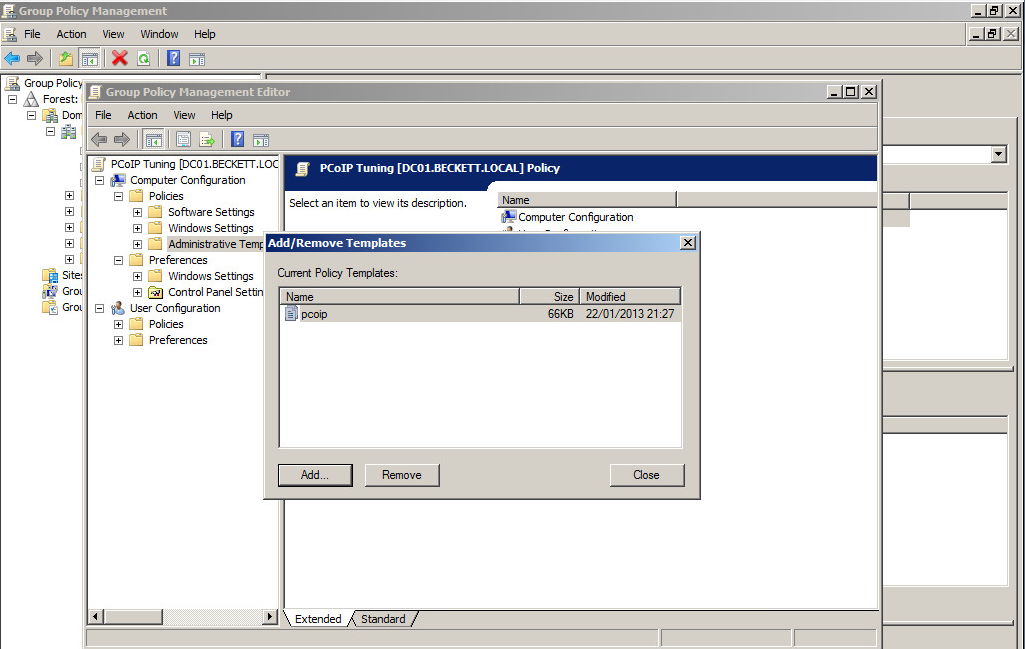
  • Determine appropriate configuration parameters based on network performance – It’s typical that on a slow link you will want to tune PCoIP to be a little less aggressive with the bandwidth it uses. This can be done by using the PCoIP group policy template pcoip.adm which comes with the Connection Server in C:\Program Files\VMware\VMware View\Server\extras\GroupPolicyFiles folder. Import this template into your Group Policy Management MMC view and you are then able to configure PCoIP settings.
  • Configure QoS and CoS settings for PCoIP

pcoipadm

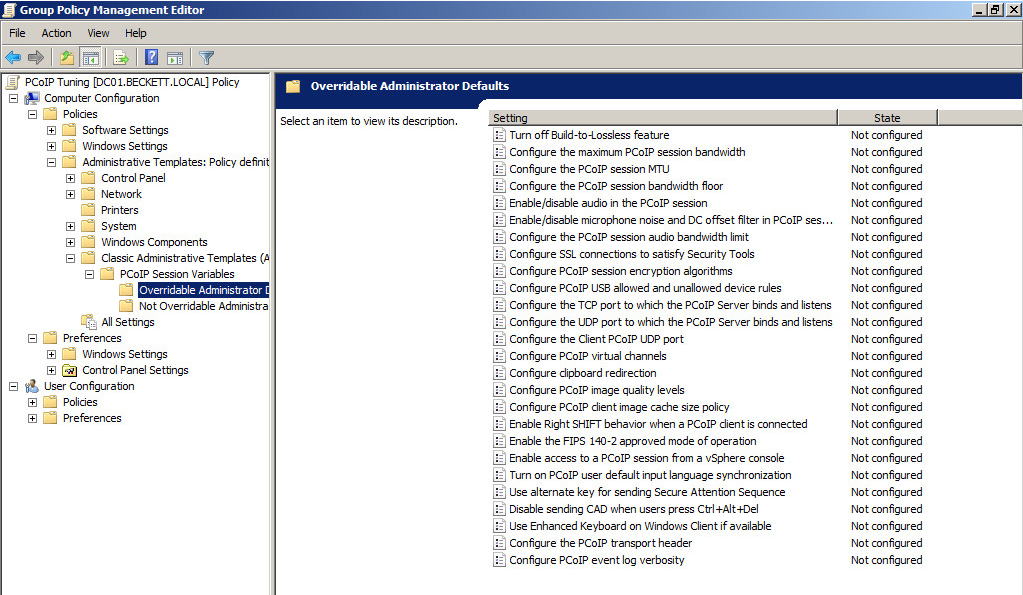
Once imported, go to Computer Configuration | Administrative Templates | Classic Administrative Templates | PCoIP Session Variables to configure PCoIP settings.

pcoipvariables

Typically, you will need to alter the following values to reduce bandwidth on a slow link :-

      • Turn off Build-To-Lossless feature – Enabled
      • Configure the maximum PCoIP session bandwidth – 10% less than WAN link speed 
      • Configure PCoIP image quality levels –
        • Minimum Image Quality default is 50 and can be from 30-100, reduce this value to reduce bandwidth at the expense of user graphics experience
        • Maximum Initial Image Quality default is 90 and can be from 30-100. Reduce this value to reduce the initial screen “burst” as it is drawn.
        • Maxium Frame Rate  default is 30, this can be between 1-120 but if you reduce the value you reduce bandwidth but increase video jitter.
        • PCoIP session bandwidth floor by default is 0 (unset) but this value tells PCoIP the least amount of bandwidth it can expect for an end user and reserves this amount of bandwidth
        • Client image cache size policy is useful when the View Client end has some local storage it can cache to. For example, thin clients and regular PCs (tablets too, I guess) can cache regularly used images to help improve performance. This setting is probably useless on a zero client because it has no local storage, so watch out you don’t get a curveball there on the exam!

04-07-14

VCAP-DTA – Objective 5.3 – Compile and Deliver Full or Streaming Applications

So now the prep work has been done to get Active Directory ready for ThinApps, the next thing to do is to actually roll some! The recommendation is to have a clean vanilla install of the platform you want to virtualise on (so a clean Windows 7 machine for an app to be deployed to Windows 7). I’ve heard people say to virtualise on XP and then you can have an app on the lowest common denominator, but for the exam that’s a level of detail we’re not concerned with.

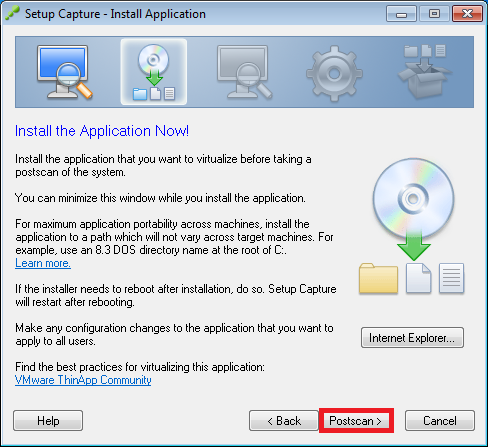
  • Build and modify a ThinApp project – The first task is to roll an application using the ThinApp packager by running the Setup Capture wizard either remotely or from a locally installed copy. This is a five step process which basically involves Prescan, Installation, Postscan, Configure and Build. It’s all wizard driven as per below :-

setup-capture

In the interests of time in the exam, I’m guessing you’ll be asked to package something reasonably cheesy and small, such as 7-Zip. Run the pre-scan task to get a “before” configuration snapshot. This doesn’t usually take longer than a couple of minutes. Once it’s done, you’ll be asked to run the installer, do this now. Always worth making sure you run the installer as an Administrator, that can sometimes cause odd things to happen to applications (and may well turn up in the exam). Once the install has completed, hit the postscan button to perform the “after” snapshot of the local filesystem and registry. You may get a warning to ensure the application has completely installed, so just double check this before you continue.

install


Once the post scan is complete, you’ll be asked to choose an entry point. This is basically the application executable. The wizard is usually pretty good at getting this right, but double check anyway. If you install a suite of products (say Office), you’ll need to add an entry point for each application such as Word, Excel, etc.

The next step chooses whether or not to manage the application via Horizon or if you’re updating an existing package. Choose as appropriate. The next step is to select which AD groups (if any) have access to the application. My guess is in the exam, you’ll be asked to restrict this app to a particular group and then test it.

groups

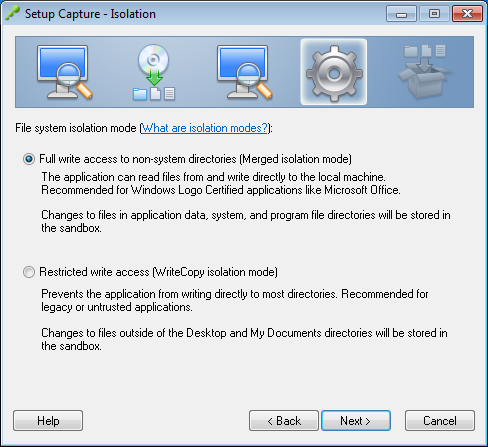
Next step is the application isolation mode. This is the kind of thing vendors love to test on exams. The default is merged isolation mode and allows the application access to read and write outside of the ThinApp sandbox. If I could dream up a test scenario for this, it would be that a virtualised app is playing up because it’s in WriteCopy isolation mode. This mode intercepts writes and stores them in the sandbox.  The use case for this is a highly locked down environment where you don’t want users writing to the local filesystem into system folders etc. The dialog is shown below:-

isolation-mode


The next choice is the sandbox location. This is typically left as the default of the user’s profile. This basically allows the user to roam and still have access to the application sandbox. There may be cases where a USB stick is appropriate, and it may be there is a scenario on the exam where you need to alter this from USB to Profile to fix a fault.

sandbox

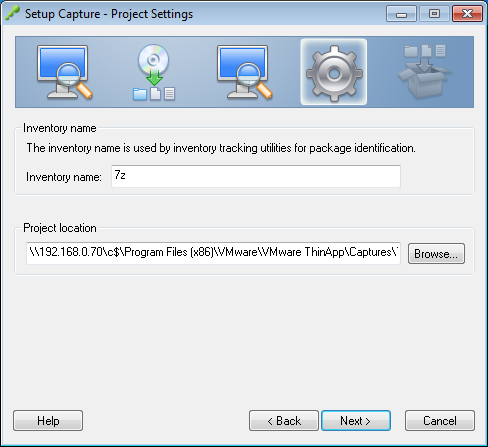
Click Next and you’ll be asked if you want to send feedback to VMware. I highly doubt your exam score will have any bearing on what you choose here, but just in case it’s specified in the scenario… Then give the application an inventory name (AKA folder name in the Captures directory) and a path to store project files. If you’re running the Setup Capture from a network share, chances are this will be pre-filled for you, as below:-

project

Select the primary data container (which is the application you wish to run) and whether or not you want to build the ThinApp as an MSI and whether or not to add compression, as per below. Click Save when you’re done:-

pdc

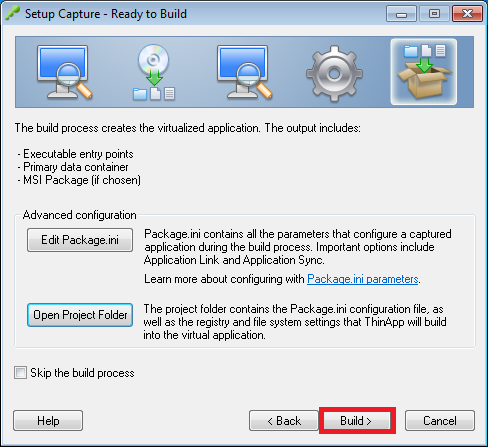
You’re now at the final step before the build process kicks off. You still have the opportunity at this stage to edit the package.ini file with any last minute adjustments you need before you start. There is still time at this stage too to go back in the wizard if you forgot to check the MSI build option in the previous screen. If all is well at this point, hit the Build button as shown below:-

build


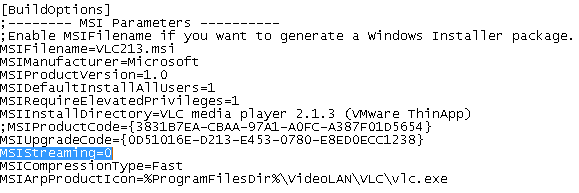
  • Configure MSI Streaming – This is a pretty easy task. Once you have a built ThinApp, open the package.ini file in the directory and open with Notepad or some other text editor. Find the section entitled [BuildOptions] (hint – it should be near the top!) and find the line that says MSIStreaming=0. Change this to MSIStreaming=1 and most important of all, don’t forget to rebuild the ThinApp with the new setting! To do this, run the build.bat file in the ThinApp package directory (i.e. the one with your ThinApped application files in). When the rebuild completes, copy the bin folder contents over to your ThinApp repo you previously defined.

msistreaming


You will also then need to add the application into the ThinApp dialog in View Administrator. Go to Inventory | ThinApps | Scan New ThinApps.. | Select the ThinApp repo | Select the folder to scan for new ThinApp(s) | Next | Select any detected applications you want to add | Click Scan | Click Finish.

  • Deploy ThinApp applications to desktop pools – Once you have one or more ThinApps created and then added to View Administrator, you need to configure usage. In the case of desktop pools, this is easy to do. From View Administrator, choose Inventory | ThinApps | Pick your ThinApp from the list | click on the Add Assignment spin button | select Assign Pools | select the required pool(s) in the dialog and click Add | if the ThinApp has been set for streaming, choose the Installation Type radio button for either Streaming or Full.
  • Configure ThinApp entitlement using View Administrator – To be honest, I don’t understand this objective. You can assign ThinApps by pool or by specific desktop, and that is the limit of what View Administrator can do. It may be that this objective is dealing with desktop specific assignment, if so, simply repeat the steps above but choose individual desktops instead of pools.


02-04-14

VCAP-DTA – Objective 5.2 – Deploy ThinApp Applications using Active Directory

Once we have a repository configured for our ThinApps, we next continue the groundwork by preparing Active Directory. We can then harness Active Directory groups to control access to the ThinApps.

  • Create an Active Directory OU for ThinApp packages or groups – From your domain server, go to Administrative Tools and select Active Directory Users and Groups. From wherever in the hierarchy the exam asks you to, right click and select New, Organizational Unit. Give the OU a name and click OK.
  • Add users to individual ThinApp package OU or groups – Again not really a View skill as such, just some basic AD administration. Now you created your OU(s) as above, to create a user right click on the ThinApp OU, click New, User, fill out the appropriate details, click Next, enter password information and click Next and Finish. To add a group, right click on the appropriate OU, click New, Group, give the group a name and select the type and click OK. To add users to an existing group, double click the group, click Members, Add and enter the user names and click Check Names. Click OK twice.
  • Leverage AD GPOs for individual ThinApp MSIs – Group Policy can be used to publish an existing ThinApp MSI without the need for a repository, or in parallel. To configure this, go to Administrative Tools, Group Policy Management. Right click the OU in which you would like to create the GPO. Select Create a GPO in this domain, and link it here (for a new GPO, or select Link an existing GPO if asked).Name the GPO and click OK. Once the GPO is created, right click on it and select Edit. In either Computer Configuration or User Configuration select Policies and then Software Settings. Right click on Software Installation and select New, Package. Browse to the network location of the MSI and select the MSI and then Open. Accept the defaults to Assign the package to a user or computer or click Advanced for further settings. Click OK. If you select Advanced, use the tabs across the top to make changes as appropriate and click OK. You may need to run gpupdate.exe to refresh Group Policy.
  • Create and maintain a ThinApp login script – The ThinReg utility can be used in an existing login script to deploy ThinApps to users. For example, in the NETLOGON share, you can add a line or lines into the logon script to invoke thinreg.exe. In it’s simplest form, just add the line thinreg.exe \\server\share\application.exe /Q. The /Q switch just runs the command silently. It may well crop up as a specific requirement on the exam.

01-04-14

VCAP-DTA – Objective 5.1 – Create a ThinApp Repository

There are two objectives in this section which are around setting up the ThinApp repository on the network to be used by the View infrastructure to distribute applications from. It’s telling that this topic has several tools references to it, so we’re going outside the confines of the View Administration guide really for the first time.

Again it’s difficult to imagine within the confines of a tight three hour exam that you will be asked to package up anything other than a relatively simple application, but be prepared for the odd curve ball. Ultimately as long as you understand the fundamentals, you can go a long way to scoring points on this objective, even if you don’t get it completely right.

  • Create and configure a ThinApp repository – The creation of the ThinApp repository is done from within View Administrator. Go to View Configuration, ThinApp Configuration, Add Repository then enter in a Display Name and Share Path (e.g. \\server\thinapp\repo) and add a Description if you like.
     
  • Configure a ThinApp repository for fault tolerance using DFS or similar tools – In order to create a DFS share, you need to have the File Services role enabled on the server. DFS is basically a network share made up of chunks of storage from different servers. You reach the DFS share by using the path \\domain\\dfsroot, so for example \\beckett.local\dfs-share. DFS also has file replication technology built in you can use for further resilience. I can’t really think you’ll be asked to do too much with DFS in the exam as much of this is based on the Windows server itself. What you will probably need to know is how to point a ThinApp repository at a DFS share (so use the example syntax above). This is pretty much all that is listed in the ThinApp reference materials.

27-03-14

North West England VMUG Meeting Review – 26th March

I had the pleasure of yesterday attending the latest North West VMUG meeting at the Crowne Plaza hotel in Manchester. As usual, the event was a half day event but this time with the added extra of some free training in the morning provided by community stalwart Mike Laverick. I didn’t attend this myself, but I’m sure it was very well recieved by those that did attend.

Owing to the late withdrawal of local community hero Ricky El-Qasem, there was a slight rejig to the schedule. Dell basically provided a “twofer” session, showing off their DVS solution stack and also the new VRTX (pronounced “Vertex”) all in one server stack in a single 5U unit. We then had a session from local cloud providers 1st Easy and to round the day off, we had an interesting session from Mike Laverick around the concept of “FeedForward”.

So Dell kicked off with Simon Isherwood discussing their DVS model, and I was immediately wishing they’d call it something else as a DVS is something totally different to me – a Distributed Virtual Switch! Such is life in the IT industry that many acronyms overlap, so we just have to live with it. Not Simon’s fault, I’m sure. The purpose of the DVS is that it provides a reference architecture for deploying not just Horizon View, but Citrix XenDesktop and other solutions atop Dell hardware and services.

As many will be aware, Dell have been on a bit of an acquisition spree in the last few years, notably picking up Quest and also Wyse in that time.  That’s significant because Quest have vWorkspace, which is also a brokered VDI solution. Wyse is significant as you could argue it’s the “de facto” choice for thin and zero client solutions in a VDI deployment.

As always there were a raft of facts and figures, but some of the more telling stats were that it has been forecast that by 2016 there will be 200 million employees taking part in BYOD initiatives and Dell have noticed anecdotally that there are many more clients coming forward now looking to do something in the VDI space.

What was good to hear was that Dell are as agnostic as possible in their stack, so obviously they would prefer you to go down the all Dell route of Dell servers, professional services, networking and storage, but where brownfield sites have existing arrangements for any of the previous items, Dell can work within these boundaries to design and implement a VDI solution. The DVS model provides white papers on compatibility and scalability testing, to remove those time consuming steps from a VDI deployment project and give you some confidence on what sort of scales you can achieve.

There were other discussion items around the use of nVidia Grid and Lynx cards to provide high end graphics for VDI solutions but the thing that probably turned heads the most was the Cloud Connect stick. This is basically a stick not much bigger than a regular USB stick that has an MHL port, USB on the go support and a slot for additional SD storage. What you do is basically plug the stick into a HDMI socket (and you can loop the USB on the go cable for powered support), attach a bluetooth mouse and keyboard and it essentially becomes a thin client. The stick is around £130 and is an Android device with View, XenDesktop and Google Play support. Dell have rubbed some awesome sauce on this device!

All the thin/zero devices are managed via Cloud Client Manager, which is a web based service that provides MDM services such as device wipe, firmware updates etc. As a matter of fact, you cannot use a Cloud Connect stick unless it has access to Cloud Client Manager, according to Dell. Well worth checking out if you get the chance.

We then had a quick run through the development of the VRTX platform. It seems the main driver for the design of this solution was smaller businesses or branch offices where the server room was generally a cupboard with random bits of hardware, some four gangs stretched across the room and sone strategically placed desk fans. The purpose of VRTX is to take all of these components and shrink them down into a 5U form factor chassis. It can be rack mounted or free standing and takes up to 4 half height blade servers or 2 full height blades. It also has internal DAS storage and comes with a variety of options around configuration choices.

One feature Dell was particularly keen to emphasise was the volume of the chassis itself. Usually you would expect enterprise grade server platforms to sound like a plane taking off, and that’s usually the case, but the VRTX itself has been designed to be whisper quiet for a small office setting, so theoretically you could have it powered on in an open plan office and nobody would ever know. Dell switched it on during the presentation and I can verify it was indeed a very quiet piece of kit!

For large scale geographical deployments, there is a web based management tool with a management map so administrators can drill down and manage VRTX devices. A proof point for the solution is Caterham F1, who have consolidated their track side kit down from several flight cases down to just a few VRTX devices.

Two sneaky pictures of a powered on VRTX unit!

IMG_20140326_152439


Then came Stephen Bell, the MD of local cloud provider 1st Easy. This presentation was slightly more abstract with the title “From waterwheels to cloud”. The premise of this presentation was that during the industrial revolution, choices were made around how power was generated and the waterwheel was a fixed solution that had inherent flaws. This then lead on to the discussion on energy costs, which these days seem to be the primary driver for virtualisation.

I seem to recall Stephen said their energy costs had gone up three fold in eight years, and that trend is only set to rise. As such, they made the strategic decision to consolidate servers into VMware technologies such as vSphere and vCloud Director, to allow them to provide the same level of service but at a much smaller footprint and therefore cost. Also, as opposed to the concept of a waterwheel being a fixed and rigid design model, virtualisation and cloud had allowed them to become more agile as a service provider, and this was a key business driver from the word go.

The final main presentation was from Mike Laverick, discussing the concept of “FeedForward”. He started the session by discussing how user groups tend to be dominated by vendors, mainly because attendees fear presenting themselves. This can be for a variety of reasons, for example :-

  • “I only have a few hosts”
  • “Nobody is interested in my small project”
  • “My project failed, who wants to hear about that?”
  • “I’m boring!”
  • “I’m not confident enough to present in front of an audience”

A few years back, I was part of the Novell community in the UK and Europe and we had similar problems trying to get customers to present to the UG. The fact is, when a customer presents, it re-invigorates the audience. Instead of the same old faces and voices, and presentations about similar storage solutions for example, you get some “real world” insight into what worked, what didn’t worked, what we learned etc.

The drive now is to try and engage VMUG members to present more frequently by employing the “FeedForward” mechanism. In essence, what this is is a mentoring system, whereby a senior member of the community will help you design and present your slide deck, offer guidance on what works and what maybe doesn’t and even maybe stand up with you when you do it.

The naming as it suggests means you get constructive dialog going before you present rather than after, so it’s not feedback as such. So when you come to the big day and you present to your local VMUG, you can have confidence that what you’re presenting is interesting, factually correct and has been proof read by a different pair of eyes.

So for my sins I volunteered to present at the next meeting on June 11th, I’m thinking about discussing VMware certification. I’ve done a bagful of VCPs and VCAPs, so it seems like something I can talk about for 45 minutes!

To round things off, we had the usual vNews update from Ashley Davies. This covered topics such as vSAN and there was also some discussion on a bug with Windows 2012 when using E1000 that causes data corruption. As we use VMXNET3, we haven’t seen this thankfully, but one to be aware of.

As usual, thanks to VMUG leaders Steve Lester and Nathan Byrne and sponsors Dell and 1st Easy for another super event. The vBeers afterwards were good fun and those mini fish and chips portions were very popular!


06-03-14

VCAP-DTA – Objective 3.2 – Configure and Manage Pool Tags and Policies

This objective is relatively short and only has one skill being measured, the ability to correctly configure tags. As a refresher, tags can be used to provide a level of security on connection servers and pools and gives the ability to provide what VMware refers to as “Restricted Entitlement”, which means Connection Servers can only access certain pools. The most obvious and common use case for tagging is when Security Servers are in play, and you want to restrict incoming users from the internet to only use particular Connection Servers.

So then, with only one skill/ability being measured in this section, let’s get to it!

  • Configure tagging for specific Connection Server or security server access – Tagging is done from within View Administrator. You can set tags on Connection Servers and also on pools. One thing you need to be aware of is tag matching – this defines whether or not a user is permitted access to a desktop and will most likely be something you’ll be tested on in the exam.
    • To set a tag on a Connection Server, go to View Administrator and View Configuration, Servers, Connection Servers, choose your Connection Server, click Edit and in the top box, assign the tags you want to use. The example below illustrates two tags in use. This is an internal Connection Server, so it’s been tagged as “Internal” and “Secure”. Note a comma separating multiple tags.

tags

    • To add tags to an existing pool, in View Administrator go to Inventory, Pools, select the Pool you wish to tag, click Edit and then Pool Settings. At the top of this screen is General and Connection Server Restrictions. Click Browse and click the Restricted to these tags radio button. Select the appropriate tag as per below :-

pool-tags

    • Click OK to apply the setting.
    • To apply a tag during pool creation, when you get to the Pool Settings screen, you basically access the same dialog screen. So under the General heading at the top, go to Connection Server Restrictions, click Browse and select the appropriate tag as shown above.
  • In respect of tag matching, be aware of the following matrix as you may be asked to troubleshoot an access issue during the exam which may be caused by incorrect tagging :-
    • Connection Server no tags – Pool no tags – access permitted
    • Connection Server no tags – Pool tags  – one or more tags – access denied
    • Connection Server one or more tags – Pool no tags – access permitted
    • Connection Server one or more tags – Pool one or more tags – access depends on tags matching

VCAP-DTA – Objective 3.3 – Administer View Desktop Pools

This objective is the guts of spinning up virtual desktops for users, and covers the full range of desktop pool types available. So full and linked clone pools, assignment types, Terminal Services or manual pools, user and group entitlements and finally refreshing, recomposing and rebalancing pools. Sounds like a lot, but actually there’s a nice flow to this objective and it should be quite straight forward.

  • Create and modify full or linked-clone pools – To create a new pool in View Administrator, go to  Inventory, Pools, Add. The pool creation wizard is generally pretty easy to follow and there’s not much value I can to it here. Click Next until you reach the third screen of the wizard, entitled vCenter Server. This screen provides the option for Full virtual machines or View Composer Linked Clones. Select the appropriate radio button for the type you want and continue on through the screens to finish the pool creation wizard. The choice selection screen is shown below :-

pool-type

    • To modify an existing pool, go to Inventory, Pools, select the pool you are interested in and click Edit. You can change various settings on an existing pool, such as the pool display name, remote protocol settings, power management, storage accelerator etc. You cannot change the pool type once it has been created.
  • Create and modify dedicated or floating Pools – To create a floating pool, you can only select Automated Pool or Manual Pool in the initial pool definition type screen. When you click Next, you then get presented with the choice of creating a Dedicated or Floating pool. Remember dedicated pools mean once a user is assigned a desktop, they own it “forever” whereas a floating pool is in essence the “next cab off the rank” and is not persistently tied to a single user. Each type has their own use case. From here, complete the wizard with the required settings to provision the pool.
    • To modify an existing pool, go to Inventory, Pools and select the pool you wish to modify. Click Edit and make changes as appropriate. With a dedicated pool, your only option is to enable/disable automatic assignment. A floating pool has additional options for editing settings, including vCenter Settings (changing datastores etc.) and also Guest Customizations.
  • Build and maintain Terminal Server or manual desktop pools – Manual and Terminal Services pools are an extension of View by adding in the View Agent to an existing virtual machine, Terminal Server or even a physical PC or blade PC.
    • To add a manual pool, ensure the agent is installed on the endpoint (and you may be tested on this!), go to Inventory, Pools, Add, Manual Pool. Again the wizard is pretty straight forward, populate all the settings you need.
    • To add a Terminal Services pool, again make sure the View Agent is installed on the endpoint before you proceed.
  • Entitle or remove users and groups to or from pools – Once you’ve built your pools, you also need to add an entitlement. This is simply users and/or groups from Active Directory that you want to grant access to desktops to. This can be done in one of two ways – either when the pool is created (final wizard screen, tick the box for entitle users after this wizard finishes) or afterwards if you forget during pool creation, or if you want to add additional users or groups. If you select to entitle on completion, click Add and use the search box to find the users or groups you want to entitle, as shown below :-

entitlements

    • To add entitlements retrospectively, go to Inventory, Pools, Entitlements and this brings you into the same dialog as above where you simply repeat the same steps to add users and/or groups.
  • Refresh, recompose or rebalance pools – Depending on your design or operational procedures (or if you’re asked to by the exam!), you will need to refresh, recompose or rebalance your desktop pools. As a refresher, this is what each term means :-
    • Refresh – Reverts the OS disk back to the original snapshot of the clone’s OS disk
    • Recompose – Simultaneously updates all linked clone machines from the anchored parent VM, so think Service Pack rollout as a potential use case
    • Rebalance – Evenly redistributes linked clone desktops among available datastores
    • To perform these operations, the desktops must be in a logged off state with no users connected. Go to View Administrator, Inventory, Pools and select the pool you want to manage. Under the Settings tab, click the View Composer button and choose the operation – refresh, rebalance or recompose
    • When you choose the refresh action, you specify when you want the task to run and whether you want to force users to log off or wait for them to log off. You can also specify a logoff time and message, this is customisable from Global Settings. Check your settings and hit Finish to start the operation.
    • When you select recompose, select the snapshot you want to use and whether or not to change the default image for new desktops. Again run through the scheduling page and choose your settings, click Next and Finish.
    • When you select rebalance, you simply fill out the scheduling page and click Finish.
    • Remember if you’re asked to set a custom logoff message, this is done from View Configuration, Global Settings, Display warning before forced logoff.

02-03-14

VCAP-DTA – Objective 3.1 – Configure Pool Storage for Optimal Performance

So this objective sees us moving into section 3 which is entitled “Deploy, Manage, and Customize Pool Implementations”. This objective deals with how we use storage tiers for different virtual disks and use cases, and the sub settings within them. So as usual, let’s run through the skills and abilities for this objective :-

  • Implement storage tiers – When creating a Composer based pool, select the option in the Storage Optimization wizard screen to separate out disks to different datastores. Depending on the exam scenario, you may be asked to separate the Persistent Disks and/or the Replica Disks. Depending on what you select, when you click Next you will get a differing set of options. Assuming you select both, on the vCenter Settings screen, use options 6, 7 and optionally 8  to choose which datastores are used and for which purpose. Once you have completed your choices, complete the wizard out to create the pool.
  • Optimize placement of replica virtual machine – The replica disk is the disk that gets hammered for read read requests from users, so you will be asked to place this on high performance storage, most likely SSD. Using the steps detailed above, use the vCenter Settings screen of the pool wizard to choose a high performance datastore for the replica disk. The diagram below illustrates this point.

replica-ds

  • Configure disposable files and persistent disks – Again this is selected in the pool wizard. You can see from above that there is a View Composer Disks section. This defines how disposable (so think temp files) and persistent disk (user profile) are handled. So for the Persistent Disk, you can select a disk size and drive letter and to redirect the user profile to this disk. The same goes for the Disposable Disk, select the size, whether or not to redirect and which drive letter to use. See below for an illustration of this.

composer-disks

  • Configure and optimize storage for floating or dedicated pools – This is pretty much covered by the first section, Implement Storage Tiers.
  • Configure overcommit settings –  This setting is used when using View Composer. The purpose of overcommit is to allow more disks to be created than physical space exists on the datastore. This is because the disks are sparse disks  on the datastore. The choices for overcommit are None (x0), Conservative (x4, default), Moderate (x7) and Aggressive (x15).  Select the datastore and choose the level of overcommitment from the drop down menu. These choices are only available for OS and Persistent Disks. See below for an example of the dialog.

overcommit

  • Determine implications of using local or shared storage – So in most cases you will be looking to use shared storage, but there may be occasions (and exam scenarios) where you will be asked to use local storage (or it’s use is implied by the question). Bear the following in mind from the View Administration Guide :-
    • You cannot load-balance virtual machines across a resource pool. For example, you cannot use the View Composer rebalance operation with linked-clones that are stored on datastores
    • You cannot use VMware High Availability
    • You cannot use the vSphere Distributed Resource Scheduler (DRS)
    • You cannot store a View Composer replica and linked clones on separate datastores if the replica is on a local datastore
    • When you store linked clones on datastores, VMware strongly recommends that you store the replica on the same volume as the linked clones. Although it is possible to store linked clones on local datastores and the replica on a shared datastore if all ESXi hosts in the cluster can access the replica, VMware does not recommend this configuration
    • If you use floating assignments and perform regular refresh and delete operations, you can successfully deploy linked clones to local datastores.
  • Configure View Storage Accelerator and regeneration cycle – The View Storage Accelerator is also known as the Content Based Read Cache (CBRC) on the ESXi host. This is especially useful as common read based requests are cached into host RAM and is useful for use cases such as desktop boot storms. Configuration is pretty simple – in the pool creation wizard you make your choices in the Advanced Storage Options screen. Check the box to Use View Storage Accelerator, choose between OS Disks  or OS and Persistent Disks. The default is OS disks as this is the usual use case. You also have the option to set a default value for Regenerate Storage Accelerator after days. This basically creates new indexes of the disks and stores them in the digest file for each VM. It’s also worth noting you can configure blackout periods when storage accelerator regeneration will not be run. An obvious example is to suspend this during backups. You may be asked this in the exam. See below for an example.

cbrc

22-02-14

VCAP-DTA – Objective 2.5 – Configure Location Based Printing

So we come to the final objective in section 2, configuring location based printing. In essence, this is harnessing the abilities of ThinPrint to enable printing from the View environment, using physical printers located nearby to the end users. There are three measured skills and abilities in this section, and are listed below.

  • Configure location-based printing using a Group Policy Object – To start with, you need to register the ThinPrint DLL on an Active Directory server to enable the functionality within MMC. To do this, go to any of your Connection Servers and find the file TPVMGPoACmap.dll. There are both 32 bit and 64 bit versions. This file is located under C:\Program Files\VMware\VMware View\Server\extras\GroupPolicyFiles\ThinPrint.
    • Copy TPVMGPoACmap.dll to the Active Directory server (choose the appropriate version, 32/64 bit)
    • Register the DLL by running regsvr32 “C:\TPVMGPoACmap.dll” from a command prompt
    • Start Group Policy Management from Administrative Tools on an Active Directory server
    • Either create and link a new GPO or edit an existing one (depending on the exam scenario)
    • Go to Computer Configuration, Policies, Software Settings and Configure AutoConnect Map Additional Printers.
    • Ensure to select the Enabled radio button to start entering entries into the mapping table. Remember that selecting Disable without saving first will delete all of your printers!
    • Printer mappings can be used to map printers depending on certain rules, as per the example dialog below


thinprint


    • You will also need to know the syntax of each column for settings to become effective :-
      • IP Range – 10.10.1.1-10.10.1.50, for example. Or you can use an entire subnet, e.g. 10.10.1.0/24. You can also use an asterisk as a wildcard.
      • Client Name – So in the above example, PC01 maps a specific printer “Printer2”, again an asterisk is used as a wildcard.
      • Mac Address – Use the hyphenated format 01-02-03-04-05-CD for Windows and colons for Linux clients, so 01:02:03:04:05:CD.
      • User/Group – Map a specific printer to a specific user or group, such as jsmith or Finance.
      • Printer Name – This is the printer name as shown in the View session. The name doesn’t have to match names on the client system.
      • Printer Driver – Simply the printer driver name in Windows. This driver must be installed on the desktop.
      • IP Port/ThinPrint Port – the IP address of a networked printer to connect to, must be prepended with “IP”, so IP_192.168.0.50 for example.
      • Default – Whether this printer is the default printer.


21-02-14

VCAP-DTA – Objective 2.4 – Backup and Restore View Environment

Now to a key exam objective in my opinion. Like any application, a backup is only as effective as it’s restoral, if that makes sense. Or in other words, if you back something up but don’t know how to put it back under a disaster recovery situation, then your backup is about as useful as an ashtray on a motorbike.

The blueprint cites the administration guide, the View Administrator console and vdmexport.exe as the key touchpoints for this objective, so without further ado, let’s get into the skills and abilities tested :-

  • Backup the View Composer database – This is just a general bullet point and is non specific about how to backup View components. There are basically two ways – via View Administrator and via command line using vdmexport.exe. Either way, you can get backups of both View Manager and View Composer data.
  • Backup LDIF or SVI using View Administrator – 
  • To backup immediately from View Administrator, go to View Configuration, Servers, Connection Servers, select a Connection Server (remember the ADAM database is replicated) and select  Backup Now. If the exam asks you to set a custom schedule on the automatic backup, go to Edit, select the Backup tab and choose the appropriate options. Also note here the save path for backups, you may be asked to change this too. If you quickly browse to this folder, you should see LDF and SVI backup files, formerly for your View Manager configuration, latterly for View Composer.
  • Backup LDIF using vdmexport – This item is specifically geared to backing up the View Manager configuration rather than both View and Composer.
    • You need to know where vdmexport.exe is – it’s located in C:\Program Files\VMware\VMware View\Server\tools\bin
    • To backup to LDIF, run vdmexport -f viewbackup.ldf
    • Also know what the switches do. -f specifies file name, -v specifies verbatim (plain text format) mode and -c cleanses the backup file, removing passwords and sensitive data. You shouldn’t restore from a cleansed file, so I don’t expect the exam to ask you to do this. The -v and -c switches are added after the main backup command, so vdmexport.exe -f backup.ldf -v for example.
  • Restore a View environment from a backup – To restore data from backup, you use the vdmimport.exe tool. This is kept in the same folder as the export tool, noted above.
    • The import process essentially has two steps – first you need to decrypt the backup file and you then need to import it back into View. To do this, run vdmimport -d -p password -f backupfile.LDF > decryptedbackup.LDF. Omitting the -p  switch will prompt you for the password, if you don’t want to type it clear text.
    • To import the backup, run vdmimport -f decryptedbackup.LDF.
    • Restoring Composer is slightly more involved, as we have to put data back into SQL/Oracle remember. Backup file names for Composer have an .svi extension and are also date stamped. This factor may come into play in the exam (e.g. restore Composer from June 5th)
    • Copy the .svi backup file from a Connection Server to the server running View Composer
    • Stop the Composer service so the database is not being written to as we restore
    • We use the sviconfig.exe utility to restore the data to Composer, this is stored in C:\Program Files\VMware\VMware View Composer\sviconfig.exe (may also be located under C:\Program Files(x86) if you can’t find it).
    • sviconfig.exe has five switches, and you need to know them all for a successful restore! -operation, -DSNname, Username, Password, BackupFilePath. -operation tells the utility we want to restore, -DSNname is the database source name defined under Data Sources in Windows Control Panel, Username is the database administrator account (so not a View administrator but one you used when creating the database), -password is the database administrator’s password and -backupfilepath is where the target .svi backup file is located.
    • Putting all of that together, the command would look like this :-
      • sviconfig.exe -operation=restoredata -dsnname=ComposerDB -username=ComposerDBO -password=P@ssword123 -backupfilepath=C:\Backup-20140221142435-vCenter.SVI
    • Running sviconfig.exe at the command line will give you -operation values but little else, so if you can’t remember the other four switches, you may need to quickly lean on the Administration Guide PDF. If you basically think “database”, then you should be OK – so, DSN name, user, password and of course backup file. Actually quite straightforward.