02-03-14

VCAP-DTA – Objective 3.1 – Configure Pool Storage for Optimal Performance

So this objective sees us moving into section 3 which is entitled “Deploy, Manage, and Customize Pool Implementations”. This objective deals with how we use storage tiers for different virtual disks and use cases, and the sub settings within them. So as usual, let’s run through the skills and abilities for this objective :-

  • Implement storage tiers – When creating a Composer based pool, select the option in the Storage Optimization wizard screen to separate out disks to different datastores. Depending on the exam scenario, you may be asked to separate the Persistent Disks and/or the Replica Disks. Depending on what you select, when you click Next you will get a differing set of options. Assuming you select both, on the vCenter Settings screen, use options 6, 7 and optionally 8  to choose which datastores are used and for which purpose. Once you have completed your choices, complete the wizard out to create the pool.
  • Optimize placement of replica virtual machine – The replica disk is the disk that gets hammered for read read requests from users, so you will be asked to place this on high performance storage, most likely SSD. Using the steps detailed above, use the vCenter Settings screen of the pool wizard to choose a high performance datastore for the replica disk. The diagram below illustrates this point.

replica-ds

  • Configure disposable files and persistent disks – Again this is selected in the pool wizard. You can see from above that there is a View Composer Disks section. This defines how disposable (so think temp files) and persistent disk (user profile) are handled. So for the Persistent Disk, you can select a disk size and drive letter and to redirect the user profile to this disk. The same goes for the Disposable Disk, select the size, whether or not to redirect and which drive letter to use. See below for an illustration of this.

composer-disks

  • Configure and optimize storage for floating or dedicated pools – This is pretty much covered by the first section, Implement Storage Tiers.
  • Configure overcommit settings –  This setting is used when using View Composer. The purpose of overcommit is to allow more disks to be created than physical space exists on the datastore. This is because the disks are sparse disks  on the datastore. The choices for overcommit are None (x0), Conservative (x4, default), Moderate (x7) and Aggressive (x15).  Select the datastore and choose the level of overcommitment from the drop down menu. These choices are only available for OS and Persistent Disks. See below for an example of the dialog.

overcommit

  • Determine implications of using local or shared storage – So in most cases you will be looking to use shared storage, but there may be occasions (and exam scenarios) where you will be asked to use local storage (or it’s use is implied by the question). Bear the following in mind from the View Administration Guide :-
    • You cannot load-balance virtual machines across a resource pool. For example, you cannot use the View Composer rebalance operation with linked-clones that are stored on datastores
    • You cannot use VMware High Availability
    • You cannot use the vSphere Distributed Resource Scheduler (DRS)
    • You cannot store a View Composer replica and linked clones on separate datastores if the replica is on a local datastore
    • When you store linked clones on datastores, VMware strongly recommends that you store the replica on the same volume as the linked clones. Although it is possible to store linked clones on local datastores and the replica on a shared datastore if all ESXi hosts in the cluster can access the replica, VMware does not recommend this configuration
    • If you use floating assignments and perform regular refresh and delete operations, you can successfully deploy linked clones to local datastores.
  • Configure View Storage Accelerator and regeneration cycle – The View Storage Accelerator is also known as the Content Based Read Cache (CBRC) on the ESXi host. This is especially useful as common read based requests are cached into host RAM and is useful for use cases such as desktop boot storms. Configuration is pretty simple – in the pool creation wizard you make your choices in the Advanced Storage Options screen. Check the box to Use View Storage Accelerator, choose between OS Disks  or OS and Persistent Disks. The default is OS disks as this is the usual use case. You also have the option to set a default value for Regenerate Storage Accelerator after days. This basically creates new indexes of the disks and stores them in the digest file for each VM. It’s also worth noting you can configure blackout periods when storage accelerator regeneration will not be run. An obvious example is to suspend this during backups. You may be asked this in the exam. See below for an example.


cbrc

22-02-14

VCAP-DTA – Objective 2.5 – Configure Location Based Printing

So we come to the final objective in section 2, configuring location based printing. In essence, this is harnessing the abilities of ThinPrint to enable printing from the View environment, using physical printers located nearby to the end users. There are three measured skills and abilities in this section, and are listed below.

  • Configure location-based printing using a Group Policy Object – To start with, you need to register the ThinPrint DLL on an Active Directory server to enable the functionality within MMC. To do this, go to any of your Connection Servers and find the file TPVMGPoACmap.dll. There are both 32 bit and 64 bit versions. This file is located under C:\Program Files\VMware\VMware View\Server\extras\GroupPolicyFiles\ThinPrint.
    • Copy TPVMGPoACmap.dll to the Active Directory server (choose the appropriate version, 32/64 bit)
    • Register the DLL by running regsvr32 “C:\TPVMGPoACmap.dll” from a command prompt
    • Start Group Policy Management from Administrative Tools on an Active Directory server
    • Either create and link a new GPO or edit an existing one (depending on the exam scenario)
    • Go to Computer Configuration, Policies, Software Settings and Configure AutoConnect Map Additional Printers.
    • Ensure to select the Enabled radio button to start entering entries into the mapping table. Remember that selecting Disable without saving first will delete all of your printers!
    • Printer mappings can be used to map printers depending on certain rules, as per the example dialog below


thinprint


    • You will also need to know the syntax of each column for settings to become effective :-
      • IP Range – 10.10.1.1-10.10.1.50, for example. Or you can use an entire subnet, e.g. 10.10.1.0/24. You can also use an asterisk as a wildcard.
      • Client Name – So in the above example, PC01 maps a specific printer “Printer2”, again an asterisk is used as a wildcard.
      • Mac Address – Use the hyphenated format 01-02-03-04-05-CD for Windows and colons for Linux clients, so 01:02:03:04:05:CD.
      • User/Group – Map a specific printer to a specific user or group, such as jsmith or Finance.
      • Printer Name – This is the printer name as shown in the View session. The name doesn’t have to match names on the client system.
      • Printer Driver – Simply the printer driver name in Windows. This driver must be installed on the desktop.
      • IP Port/ThinPrint Port – the IP address of a networked printer to connect to, must be prepended with “IP”, so IP_192.168.0.50 for example.
      • Default – Whether this printer is the default printer.


21-02-14

VCAP-DTA – Objective 2.4 – Backup and Restore View Environment

Now to a key exam objective in my opinion. Like any application, a backup is only as effective as it’s restoral, if that makes sense. Or in other words, if you back something up but don’t know how to put it back under a disaster recovery situation, then your backup is about as useful as an ashtray on a motorbike.

The blueprint cites the administration guide, the View Administrator console and vdmexport.exe as the key touchpoints for this objective, so without further ado, let’s get into the skills and abilities tested :-

  • Backup the View Composer database – This is just a general bullet point and is non specific about how to backup View components. There are basically two ways – via View Administrator and via command line using vdmexport.exe. Either way, you can get backups of both View Manager and View Composer data.
  • Backup LDIF or SVI using View Administrator – 
  • To backup immediately from View Administrator, go to View Configuration, Servers, Connection Servers, select a Connection Server (remember the ADAM database is replicated) and select  Backup Now. If the exam asks you to set a custom schedule on the automatic backup, go to Edit, select the Backup tab and choose the appropriate options. Also note here the save path for backups, you may be asked to change this too. If you quickly browse to this folder, you should see LDF and SVI backup files, formerly for your View Manager configuration, latterly for View Composer.
  • Backup LDIF using vdmexport – This item is specifically geared to backing up the View Manager configuration rather than both View and Composer.
    • You need to know where vdmexport.exe is – it’s located in C:\Program Files\VMware\VMware View\Server\tools\bin
    • To backup to LDIF, run vdmexport -f viewbackup.ldf
    • Also know what the switches do. -f specifies file name, -v specifies verbatim (plain text format) mode and -c cleanses the backup file, removing passwords and sensitive data. You shouldn’t restore from a cleansed file, so I don’t expect the exam to ask you to do this. The -v and -c switches are added after the main backup command, so vdmexport.exe -f backup.ldf -v for example.
  • Restore a View environment from a backup – To restore data from backup, you use the vdmimport.exe tool. This is kept in the same folder as the export tool, noted above.
    • The import process essentially has two steps – first you need to decrypt the backup file and you then need to import it back into View. To do this, run vdmimport -d -p password -f backupfile.LDF > decryptedbackup.LDF. Omitting the -p  switch will prompt you for the password, if you don’t want to type it clear text.
    • To import the backup, run vdmimport -f decryptedbackup.LDF.
    • Restoring Composer is slightly more involved, as we have to put data back into SQL/Oracle remember. Backup file names for Composer have an .svi extension and are also date stamped. This factor may come into play in the exam (e.g. restore Composer from June 5th)
    • Copy the .svi backup file from a Connection Server to the server running View Composer
    • Stop the Composer service so the database is not being written to as we restore
    • We use the sviconfig.exe utility to restore the data to Composer, this is stored in C:\Program Files\VMware\VMware View Composer\sviconfig.exe (may also be located under C:\Program Files(x86) if you can’t find it).
    • sviconfig.exe has five switches, and you need to know them all for a successful restore! -operation, -DSNname, Username, Password, BackupFilePath. -operation tells the utility we want to restore, -DSNname is the database source name defined under Data Sources in Windows Control Panel, Username is the database administrator account (so not a View administrator but one you used when creating the database), -password is the database administrator’s password and -backupfilepath is where the target .svi backup file is located.
    • Putting all of that together, the command would look like this :-
      • sviconfig.exe -operation=restoredata -dsnname=ComposerDB -username=ComposerDBO -password=P@ssword123 -backupfilepath=C:\Backup-20140221142435-vCenter.SVI
    • Running sviconfig.exe at the command line will give you -operation values but little else, so if you can’t remember the other four switches, you may need to quickly lean on the Administration Guide PDF. If you basically think “database”, then you should be OK – so, DSN name, user, password and of course backup file. Actually quite straightforward.

16-02-14

VCAP-DTA Objective 2.3 – Configure Syslog and View Events Database

Time for another relatively short section, this objective deals with logging. Skills and abilities from the blueprint :-

  • Configure Events database – This is relatively short and easy task, provided you remember something which I think is a little quirky about this task. Usually when you hook up vCenter/VMware components up to a database (and in my case I’m going to say SQL as I know it best), you configure an ODBC connection from within Control Panel in Windows. For events logging in View, you don’t use this. You still need to configure a database using Management Studio or the Oracle equivalent and create a user with access to write to this database. My supposition is that this will be done in advance for you in the exam, there is no mention of SQL management skills on the blueprint.
    • Before you start, you will need to know the DNS name or IP address of the database server, plus the port number (1433 SQL/1521 Oracle). Also the database name and a prefix for the events tables. You also need SQL to be configured to use SQL authentication and not Windows authentication, but it’s highly unlikely you’ll have to configure that.
    • Go to View Administrator and in the left hand column, click View Configuration and then Event Configuration.
    • In the Event Database section, click Edit and fill out the fields for Database server (IP address/DNS name), Database type (SQL/Oracle), port (1433 SQL/1521 Oracle), Database name, Username, Password, Confirm Password and Table Prefix. Once completed, click OK.
    • You may also have to set Event Settings using the dialog below. There are two settings here, click Edit and select Show Events in View Administrator for and select the appropriate value from the drop down. You can also edit Classify events as new for if asked to on the exam. Chances are you will!
    • Click OK to save away the settings. To confirm successful configuration, click Monitoring in the left hand column and select Events, you should see event messages stacking up in the database. If you don’t, go back and check your settings.
  • Configure Syslog using vdmadmin – This objective is interesting as it purposely states you have to set syslog logging from the command line, rather than View Administrator. There is a typo in version 1.5 of the exam blueprint that says to use “vdiadmin”. Don’t get confused here, this command doesn’t exist.
    • vdmadmin.exe can be found in C:\Program Files\VMware\VMware View\Server\tools\bin and a quick way to see your options is to type vdmadmin -help. This will give you a big list of commands and switches and it’s easy to see what they all do.
    • To configure syslog events to a remote server, type vdmadmin -I -eventSyslog -enable -path \\logserver\share\ViewEvents -user mydomain\myuser -password mypassword

    • You can also configure local logging if the syslog server is on the Connection Server by typing vdmadmin -I -eventSyslog -enable -localOnly
    • To log to a specified path, use vdmadmin -I -eventSyslog -enable -path path
    • To disable syslog, use vdmadmin -I -eventSyslog -disable

15-02-14

VCAP-DTA Objective 2.2 – Configure Administrator Roles and Permissions

Continuing on from the previous objective of setting global policies, the next objective on the blueprint calls on skills required to configure Administrator roles and permissions. The source reference for this section is again the View Administration guide and can all be done via View Administrator portal. If you’re a regular View admin, you should find this section reasonably straight forward. So to the skills and abilities :-

  • Create, modify and delete administrator roles – Roles work in much the same way as they do in vCenter. Create a role, assign it a set of permissions and add users/groups to the role. There are some pre-defined (Administrators for example) which may be just fine for what you want, but you can be sure the exam will be looking for you to be more granular than that.
    • Go to View Administrator, and in the left pane, click View Configuration and then Administrators. There are three tabs that can be accessed across the top, Administrators and Groups, Roles and Folders. In the exam, it’s quite possible you may be required to add a privilege and/or permission to a built in role as well as creating a new role. 
    • To create a new role, go to the Roles tab and click Add Role. Give the role a name, an optional description and then tick the privileges you want to be able to assign out.
  • Add and remove user permissions – Worth double checking what these privileges do, such as Register Agent, as you may be asked in the exam to add a non vCenter source such as Terminal Services. Similar steps to delete roles, if you’re asked to.
    • To modify a role, go into the  Roles tab of the Administrators view, click on the custom role and click Edit to add or remove privileges. Remember you can’t edit a built in role, but you can assign permissions
    • To add a folder, click the Folders tab and click Add Folders. Give the folder a name and an optional description.
  • Assign and Manage permissions on View folders – To add a permission to the folder, click Add Permission, find the AD user or group to add, click Next  and select the role you wish to assign them. Click Finish. This will then add an AD group or user to a folder with a set of privileges. To add a pool to a folder for administration, to to the pool and select Edit. Choose the folder you wish to assign to this pool and click OK. This will now mean you can delegate management of this pool to a role you just created.

Another short section, but roles and permissions is a relatively short topic.


14-02-14

Are we finally seeing VMware 2.0?

I’ve been keeping a close eye on some of the news coming out of VMware Partner Exchange (PEX) this week and it left a bit of an impression on me. So much so I decided to write about it, in a change from our usual programming of study guides for VCAP. We’ll get back to that, don’t worry, but I wanted to impart my opinion on this topic because I think it’s important and wonder what other people think.

VMware as a company grew exponentially in the 2000s by introducing x86 virtualisation to the market, something which was a game changer as it meant we could put dozens of servers on one physical piece of tin, saving a lot of time and money and making admin’s lives a lot easier. I remember the first time I saw vMotion at a demo and my instinct was to be cynical and say it was all smoke and mirrors, but no, it was the real deal and so was the company and the technology.

Fast forward a few more years and as the company grew and got acquired by EMC, it started to look to broaden it’s solution stack to become a much richer software company. In 2009 they acquired SpringSource, 2010 Zimbra and 2011 SlideRocket. This was back in the day when I was still working for a VMware Partner. I did wonder at the time what the value was to VMware from acquiring these companies and their technologies. In the case of Zimbra for example, it seemed like a solution looking for a problem. Let’s be frank, the on premise e-mail platform war was won years ago by Microsoft Exchange, and even if you try and “cloudify” Zimbra, you’re still facing stiff competition from the likes of Google Apps and Office 365.

For me in many ways they made the classic business mistake – forgetting what you’re good at. If you look at the technology business, the ones that do the best have a fairly narrow focus, know what they do best and stick to it. There’s no harm in spreading yourself across different technologies or industries, but you must remain true to what you originally put you where you are. Look at Apple and Oracle as example of companies that may have dabbled in a couple of additional technologies, but in the end they’ve remained strong and successful by focusing on a couple of product lines and executing them really well to become market leaders.

Take Microsoft as an example of a company that tried to spread itself too thinly. They’ve made highly successful desktop operating systems and productivity suites for years, but that wasn’t enough and the problems and eye watering costs accrued from the likes of XBox, Windows Phone, Surface and Bing are well documented. In many ways, Microsoft still doesn’t know what it wants to be, but continues to execute on the Windows platform (including Hyper-V) and Office year on year. If Microsoft had not had so much cash in the bank to fund these failures, they’d have gone under years ago. Windows and Office still provide the financial engine that drives Microsoft.

Which brings me neatly to my point about VMware. In 2013, Zimbra was sold to Telligent Systems, SlideRocket was sold to ClearSlide and SpringSource was hived off to Pivotal (source – Wikipedia). The Zimbra announcement at least was done relatively quietly in my view and represented the epiphany VMware must have had that they were carrying too much baggage which was non strategic to the core business. Is it co-incidence that these activities have occurred since Pat Gelsinger became CEO? I’ll let you decide that.

So at PEX, a lot of focus was put on two emerging technologies – NSX and VSAN. The first one for those that don’t know is network virtualisation. This is big news and will again see VMware disrupting this market too. Cisco have already made sounds about the impact network virtualisation will have on their hiterto successful core business of network tin. If that moves into the software stack, they’ve got troubles.

VSAN is a new product which basically accumulates and aggregates local storage on ESXi hosts and presents it as shared storage. There are more features than that, but this is the basic premise – lower cost, simpler deployments and one vendor less to deal with if proprietary storage platforms are in use. Again, it’s very early days and the storage market is highly competitive right now (Nutanix being the obvious example).

I’ve seen and heard a lot of criticism about VMware in recent years, some of justified and some not. I’ve heard remarks that they’re a busted flush and Hyper-V will take over. For me, putting the focus back to core virtualisation products is entirely the right move to make and will fundamentally keep VMware relevant and market leaders in the industry for the next decade. Now that “vanity” projects have been spun off and sold, the company can keep a narrower focus and keep doing what it does best – virtualisation.

As always, your views are welcomed.


10-02-14

VCAP-DTA Objective 2.1 – Configure and Manage View Global Policies and Settings

Now we’ve got past upgrading, migrating and installing, it’s time to delve into some of the system wide settings in View. We’ve got (or should have) Connection Servers, Transfer Servers, Security Servers and Composer Servers. This objective focuses on global policies and global settings. So in the exam, remember these are most likely to be found at the “top level” of your View configuration, so you shouldn’t have to start going drilling into user and desktop settings. Keep that in mind if you’re asked to manipulate these settings in the exam.

That being said, there are certain settings that can be set explicitly instead of inherited. So for example, you may wish to disable USB access for everyone as you don’t want anyone plugging in a thumb drive and stealing your company assets! However, VIP users may require access, so you can configure an allow policy for them further down the tree, as it were.

So without further ado,  the skills and abilities being tested :-

  • Enable and disable global policies – In View Administrator, in the left hand column is the section Policies. Open this out and you’ll see the Global Policies. You’ll be pleased to see there isn’t a great deal to set here, so hopefully as and when you’re asked to do something on the exam, it won’t told you up for too long. This screen is broken into two sections, View Policies and Local Mode Policies.
    • In the View Policies dialog, you can either allow or deny the following – Multimedia Redirection, USB Access, Remote Mode and PCoIP Hardware Acceleration. Click the Edit Policies button and make your choices.
    • Local Mode Policies is similar, but has a little more granularity to the settings. So as well as determining if a feature is available or not, you can also set policies for  Max time without server contact, Target replication frequency and Disks replicated.
  • As I mentioned above, global policies don’t have to be a “one size fits all” scenario. Chances are in the exam, you’ll be asked to set a system wide policy to say disable USB Access but then set one pool to allow it. To do this, go to the pool, click the Policies tab, click Edit Policies and select USB Access to Allow. The diagram below illustrates this point and the right most column shows the effective setting, which is really useful to know!

usb-access

  • Configure and modify global settings – Again these settings are accessed from the left most bar from the View Configuration section.
    • Click Global Settings and again you get a split pane view of General and Security settings. General has 7 settings – Session Timeout (default 600 seconds), SSO, View Administrator Session Timeout (default 30 mins, my bet is the exam will ask you to shorten this), Enable Automatic Status Updates (updates View Administrator dashboard every 5 mins. Another one I’d expect on the exam), Display A Pre-Login message, Display Warning Before Forced Logoff  with sub option After warning, logoff after n minutes (default being 5 mins). There is also a free text box to display a warning, this may well feature on the exam.
    • Security Settings are pretty minimal too. Options here are Reauthenticate tunnel connections after network interruption, message security mode  (JMS messages are signed and verified – Mixed means enabled but not enforced. Expect to be asked to enforce this on the exam), Enable IPsec for Security Server Pairing (unlikely you’ll be asked to change this), Disable Single Sign On For Local Mode Operations (disables pass through authentication to the desktop after logging into View).

And that’s it! This section is thankfully a short one. See you next time!


07-02-14

VCAP-DTA – Objective 1.5 – Upgrade View Infrastructure Components

The purpose of this objective is to take all the major pieces of View, so think Connection Server, Security Server, Transfer Server, View Agent, View Client and View Composer and upgrade them to version 5.2, as this is the version the exam blueprint focuses on. In the skills and abilities section, there is basically a breakout for all the pieces as listed above.

I find it interesting that they call out specifically re-pairing Security Servers and enabling IPsec during the upgrade. This to me suggests that you can pretty much guarantee you’re going to see this during the exam, as to be honest, all the other pieces we just listed are pretty much “Next, Next, Finish” file copy jobs. You can actually upgrade the Connection Server without having to reboot at the end, but I always think it good practice to give it one last reboot afterwards to ensure you have all the right file versions loaded into memory.

  • Upgrade View Connection Server – As I just said, this is a very straight forward task, so maybe there’s an unforeseen curveball  in here somewhere. The only one I can really think of is to check 5.2 pre-requisites have been met, so Windows 2008 R2 64 bit, 4 vCPU, 1Gbps NIC, minimum 4GB RAM (you won’t be servicing 50 concurrent connections in an exam!). Also make sure you license the thing – coming from an older version (4.x series), the license key will be different. Also remember that self signed certificates are a big no no now, so you may have to make changes there (see earlier sections for details). If this Connection Server will be paired with a Security Server, check Windows Firewall is set to on as IPsec requires this. Potential test scenario right there! Know how to accept the self signed certificate if you’re asked that on the exam. View Administrator, click Verify on the alert.
  • Upgrade View Security Server – Check the Connection Server you pair with has already been upgraded first. Configure the pairing password in View Administrator before running the installer. The installation guide suggests checking the Security Server shows the correct version after the upgrade in View Administrator and remove any duplicate entries which can sometimes occur. With regard to IPsec, select the Security Server in View Administrator and select More Commands, Prepare For Upgrade or Reinstallation. If the old IPsec rules have not been removed, the  pairing will fail. Sounds like another potential exam pitfall!
  • Upgrade View Transfer Server – As a pre-requisite, ensure that Connection and Composer servers have been upgraded to 5.2. Backup your CA signed certificate first if you’re using one, it’s stored in install_directory\VMware\VMware View\Server\httpd\conf.
    • Put the Transfer Server into maintenance mode, go to the Transfer Servers tab, select the Transfer Server you plan to upgrade and select Enter Maintenance Mode. Wait until the status changes before continuing!
    • Run the installer as administrator and once completed successfully, go back into the Transfer Servers tab, select the server you just upgraded and select Exit Maintenance Mode.
  • You may be asked to install a net new Transfer Server – this is pretty straightforward. Go to the VM on which you want to install the Transfer Server and run through the short installer. Once complete, go to View Administrator and the Transfer Servers tab. Configure the new Transfer Server to use the file repository if that is what the scenario demands. You can then remove the old Transfer Server instance and uninstall the software from the original VM. I like the sound of this for an exam scenario!
  • Upgrade View Agent – Again meet the pre-reqs which state at least one Connection Server in the replicated group is at version 5.2. If local mode desktops are also in the mix, check View Composer and View Transfer Servers are also at 5.2. The installer also needs local admin rights on the VM.
    • Run the short installer to upgrade the View Agent piece on the desktop VM
    • If you have a linked clone pool, you will need to upgrade the master image agent, take a snapshot of this and then recompose the pool. Sounds like something you’d find in the exam to me!
    • Full clone desktops will need to be upgraded one by one by hand (doubt there will be SCCM in the exam!)
    • Once complete, verify connectivity by logging into the desktop. You can quickly check the version of agent in the View Administrator, Desktops dialog. Ensure the VDI status reads “available”
  • Upgrade View Client – Again another very straightforward task. Remember you can get the latest client by hitting the Connection Server with a web browser which gives you the View Portal. Select the appropriate client version (32/64 bit, with/without local mode) and follow the bouncing ball. Once complete, verify connectivity.
  • Upgrade View Composer – There’s no mention of migrating View Composer to another server, but that’s been covered previously. You may need to configure a CA signed SSL certificate before you run the installer, again see previous steps on how to do this. You can then let the installer upgrade the Composer database or you can do it manually. I don’t see how the exam can ask you to do it by hand, but in case they do, remember to use the SviConfig after the installer has completed.
    • Remember the View Composer port number is 18443, in case you need it for View Administrator and hooking up to a vCenter.
    • For details on migrating View Composer to a stand alone instance, see notes for Objective 1.2. I consider it likely you’ll be asked to stand up a standalone Composer server and then upgrade it in place.

28-01-14

VCAP-DTA Objective 1.4 – Deploy and Configure View Transfer Server

So we’ve deployed Connection Servers, Security Servers and now it’s the turn of the Transfer Server. Remember this is kind of a Connection Server that has the responsibility of checking local mode desktops in and out. Thinking out loud about how this might turn up the exam, I’m thinking that you’ll probably have to run through the installation of one, but I’m struggling to think that you’ll be asked to check a desktop out simply because of the time it takes. I could be wrong, but three hours is not long to get all of this stuff done!

So again a Transfer Server is stood up by running the Connection Server installation executable. No seperate installer for this component. There are a number of things to bear in mind, which hopefully will be covered below in the skills and abilities section of the exam blueprint.

  • Configure storage for View Transfer Server and the repository – OK, so this strictly doesn’t say you’ll be installing a Transfer Server, so do we assume it’s already stood up? Remember from the install and architecture guides :-

    • Must be a virtual machine, for the exam I think that’s a given!
    • Requires Windows 2008 R2 64 Bit, 4Gb RAM, 2 vCPU, 20GB disk space, LSI Logic Parallel or SAS adapter (sounds like something that might come out of a troubleshooting scenario – “Why won’t Transfer Server install?”), 1GB E1000 vNIC (you need bandwidth to check desktops in and out, of course)
    • Must be managed by same vCenter as the desktops you want to check out
    • Must have static IP address and does not need to be domain joined
    • Can’t co-exist with any other View component such as Connection Server, View Client etc
    • The installation of a Transfer Server is essentially a two step process – installing the beast and then configuring it in View Administrator. Don’t forget the second part or your Transfer Server is useless!
    • Run the Connection Server installer, select View Transfer Server and fill in details for Network Domain (somewhere.com), Server Name (FQDN) and Administrator’s e-mail address (a.bloke@acme.com, for example)
    •  Install and off we go.
    • Click Finish when the file copy and installation is complete, then we have to make the necessary changes to View Administrator
    • In View Administrator, go to View Configuration | Servers, Transfer Servers tab. Click Add and select the vCenter server your Transfer Server is managed by. Click Next and select your Transfer Server, click Finish.
    • To complete the install, you also need to create and specify a transfer repository. This can be either a local folder on the Transfer Server, or better yet, a UNC path that can be shared among multiple Transfer Servers.
    • Before you specify a repository path, you need to place your Transfer Server into maintenance mode. To do that, highlight your Transfer Server in View Administrator and click Enter Maintenance Mode.
    • In the Transfer Server Repository section at the bottom of the page, click Edit on the General Tab and select network share path or local path and select OK. Don’t forget to take your Transfer Server out of maintenance mode to complete the task!
  • Configure the View Transfer Server firewall – chances are you won’t have to do much here. If Windows Firewall is already enabled, verify that the Connection Server is allowed out over HTTP and HTTPS, paying special attention to the domain, home/work and public scopes, they might try and trip you up on this step. The good news is Transfer Server works over good old ports 80 and 443, so no wacky port numbers to remember here.
  • Configure security policies for Local Mode – Again a relatively straightforward step if you know where to look. In View Administrator, open the Policies branch in the left pane and click Global Policies. There is a specific section for Local Mode Policies, so click on Edit Policies and select the appropriate policies for the exam scenario. For example, you may be asked to change the max time without server contact from the default 7 days to say 3 days (be surprised if they ask you to go unlimited). Disks Replicated also strikes me as something you may be asked to change, for example from the default Persistent Disks to OS and Persistent Disks.

26-01-14

VCAP-DTA Objective 1.3 – Deploy and Configure a View Security Server

So as you probably recall from your VCP studies, a Security Server is essentially a chopped down version of a Connection Server that generally runs in a DMZ or other isolated part of your network, usually leveraged to authenticate public internet facing connections. The Security Server is “paired” with a Connection Server and as such provides access to desktop pools over a highly secure connection using the View Client.

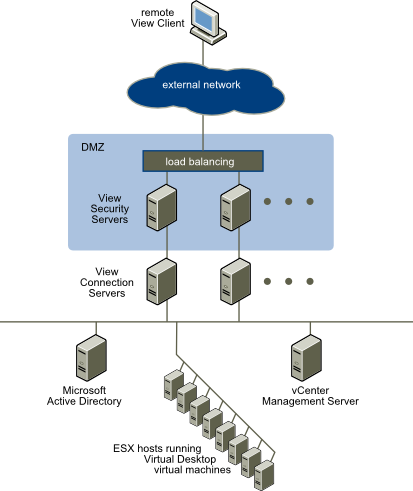
Again our reference materials are listed as the View Architecture Planning and View Installation guides, so no fiddling around with third party firewalls. My guess here is that we simply have to manipulate the Windows Server firewall to allow the necessary traffic through. The diagram below illustrates a sample View Security Server deployment and is taken from the View Architecture Planning Guide.

GUID-1D13CE6E-CCF6-4768-9F0C-872DC38D777D-high

So without further ado, what’s on the blueprint for this objective?

  • Configure and enable firewall ports and rules. As I mentioned above, the lack of any reference point outside of the standard View documents leads me to think we won’t have to tinker with any third party firewalls. And thank heavens for that, life is complicated enough! You basically need to keep in mind two sets of firewall rules – what ports do I need to expose to the internet and what ports do I need to expose from the DMZ to my internal network? VMware KB article 1027217 summarises things pretty well, the information is shown below :-

Back-End Firewall Rules

Source Destination Port Protocol
Security Server View Transfer Server 80 HTTP
Security Server View Transfer Server 443 HTTPS
Security Server Connection Server 8009 AJP13
Security Server Connection Server 4001 JMS
Security Server View Desktop 3389 RDP
Security Server 1 View Desktop 4172 PCoIP (TCP and UDP)
Security Server View Desktop 32111 USB Redirection
Security Server Connection Server 500 IPSec (UDP)
Security Server Connection Server 4500 NAT-T ISAKMP (UDP)
Connection Server Security Server 500 IPSec (UDP)
Connection Server Security Server 4500 NAT-T ISAKMP (UDP)

Front-End Firewall Rules

Source Destination Port Protocol
Any External IP Security Server 80 HTTP
Any External IP Security Server 443 HTTPS
Any External IP Security Server1 4172 PCoIP (TCP and UDP)

It’s worth remembering that if you get stuck during the exam and you can’t remember a port or service you need to poke through the firewall, the product documentation is available for you to search. Don’t rely on this though – it’s very much a “Plan B” and will take a decent chunk of time away from you.

  • Deploy and administer a View security server – the Security Server is pretty straight forward to deploy. Go into View Administrator and configure a pairing password on the Connection Server that you want  to pair with the Security Server. Run the Connection Server installation and select Security Server. From there, it’s pretty much a “next, next, finish” exercise.
  • Enable secure tunneling for PCoIP and RDP –  Configure the secure tunnel URLs in View Administrator, if appropriate. Remember  that the Secure Tunnel URL is always a “name” or FQDN with a port appended, so https://securetunnel.acme.com:443 for example (I have a feeling this sort of thing may turn up in the exam as a troubleshooting scenario) and the PCoIP URL is always an IP address, so 192.168.31.3:4172 for example. For a Security Server, remember this has tunnel settings too, so you may be asked to alter the external address in the exam.
  • Configure certificates for View Security Server – The certificate process for the Security Server is exactly the same as the Connection Server. For the exam, I’m going to speculate that they’ve already minted one for you, and you have to install and configure the Security Server to use it. So in brief again :-
    • Start MMC and add the Certificates snapin
    • Import the server certificate into the Personal store and change the friendly name to vdm
    • Import the root certificate into the certificates store, and the intermediate too, if you have one
    • Restart the Security Server service (or reboot, but I wouldn’t do that in an exam!)
  • Configure Smartcard or two-factor authentication for external access – Requires an existing RSA SecureID or similar setup, again I don’t expect to have to manage this in the exam. We’ll just focus on configuring View to use an existing infrastructure. Steps taken from the View 5.2 Installation Guide.
    • In View Administrator, select View ConfigurationServers | Select the Connection Server you wish to enable
    • On the authentication tab, select RSA SecureID or RADIUS. To force RSA SecurID or RADIUS user names to match user names in Active Directory, select Enforce SecurID and Windows user name matching or Enforce 2-factor and Windows user name matching. If you select this option, users must use the same RSA SecurID or RADIUS user name for Active Directory authentication. If you do not select this option, the names can be different.
    • For RSA SecurID, click Upload File, type the location of the sdconf.rec file, or click Browse to search for the file
    • For RADIUS authentication, Select Use the same username and password for RADIUS and Windows authentication if the initial RADIUS authentication uses Windows authentication that triggers an out-of-band transmission of a token code, and this token code is used as part of a RADIUS challenge. If you select this check box, users will not be prompted for Windows credentials after RADIUS authentication if the RADIUS authentication uses the Windows username and password. Users do not have to reenter the Windows username and password after RADIUS authentication.
    • From the Authenticator drop-down list, select Create New Authenticator and complete the page.
    • Set Accounting port to 0

       unless you want to enable RADIUS accounting. Set this port to a non-zero number only if your RADIUS server supports collecting accounting data. If the RADIUS server does not support accounting messages and you set this port to a nonzero number, the messages will be sent and ignored and retried a number of times, resulting in a delay in authentication.

      Accounting data can be used in order to bill users based on usage time and data. Accounting data can also be used for statistical purposes and for general network monitoring.

    • If you specify a realm prefix string, the string is placed at the beginning of the username when it is sent to the RADIUS server. For example, if the username entered in the View Client is jdoe and the realm prefix DOMAIN-A\ is specified, the username DOMAIN-A\jdoe is sent to the RADIUS server. Similarly if you use the realm suffix, or postfix, string @mycorp.com, the username jdoe@mycorp.com is sent to the RADIUS server.
    • Click OK to save changes. A Connection Server service or server restart is not required as the settings take effect immediately. When you connect to this Connection Server using two factor authentication, the prompts will reflect this for the end user.